Backpack


Connecting Backpack to Tealstreet
- Log into your Tealstreet account.
It's a good idea to keep both Tealstreet and Backpack tabs open for the duration of this process.
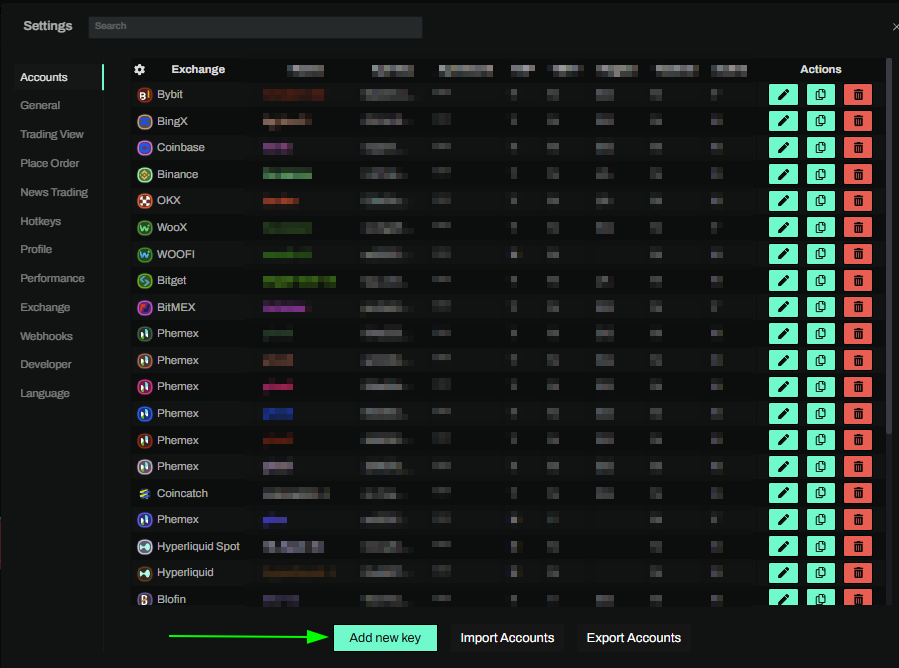
- Click the 'Settings' button near the top right corner of the terminal.

- Click the 'Add new key' button at the bottom of the settings page.
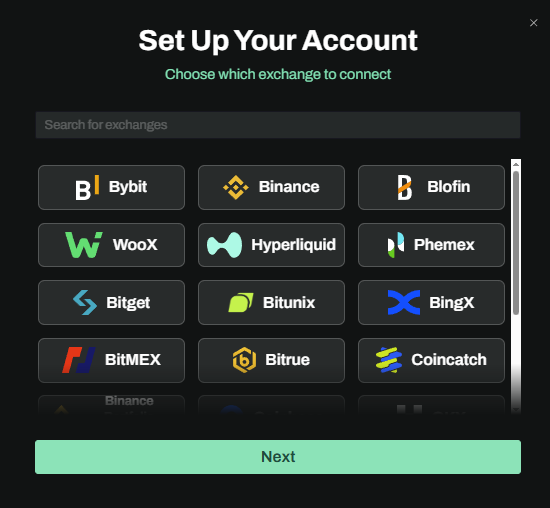
- Choose Backpack from the exchange selection menu.
Okay lets go back to our Backpack account and create the API Key.
Creating the key
- Now we are ready to generate the API Key. Head on over to Backpack and:
- Login or create you're account if you haven't already.
You will need to perform KYC before you can deposit and trade on the platform.
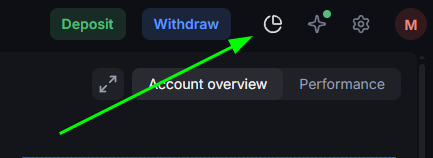
Once you have logged in select the Portfolio option at the top right of the page and then select the Settings option.
- Once you are logged in navigate to the API Management section of the profile dropdown.
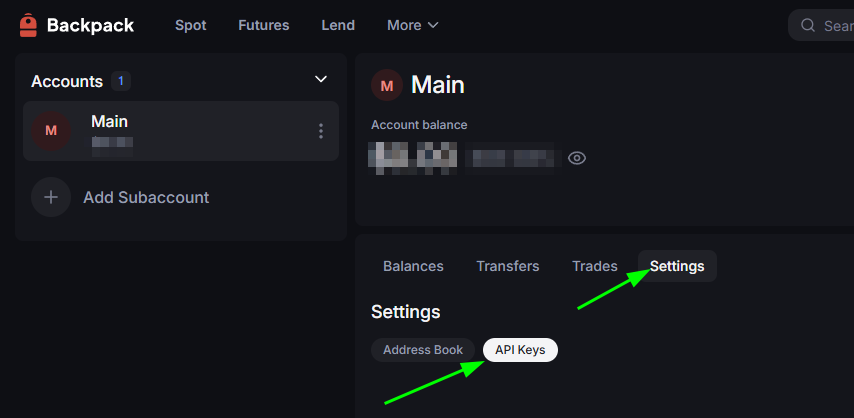
You can get to this page directly by navigating to this link
Click the New Api Key button at the right side of the API Management page.
You will need to have 2FA enabled on your account to create an API Key. This can be enabled by navigating to the Security section of the account settings page and then using the 2FA option.
If you have enabled 2FA when you click New Api Key you will see the Create API Key window.
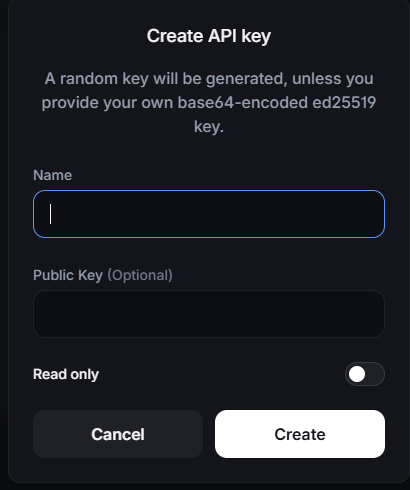
- Give the key a name, it can be whatever you want.
- Provide a base64 encoded key if you wish to do so, otherwise a random one will be generated for you.
- Do NOT enable the Read-only if you wish to use Tealstreet to trade on Backpack.
You will be prompted by the security prompt to verify your 2FA code to continue.
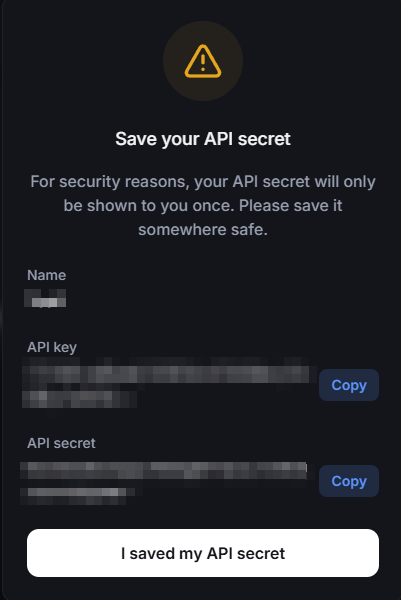
Backpack will generate you an API Key and API Secret. Copy these down.
Lastly we will need to setup IP Whitelisting. After the key is created you will see an option to the right of the key that says IP/CIDR click this to setup IP Whitelisting.

You can find these IP's in the Tealstreet API page we left open earlier.
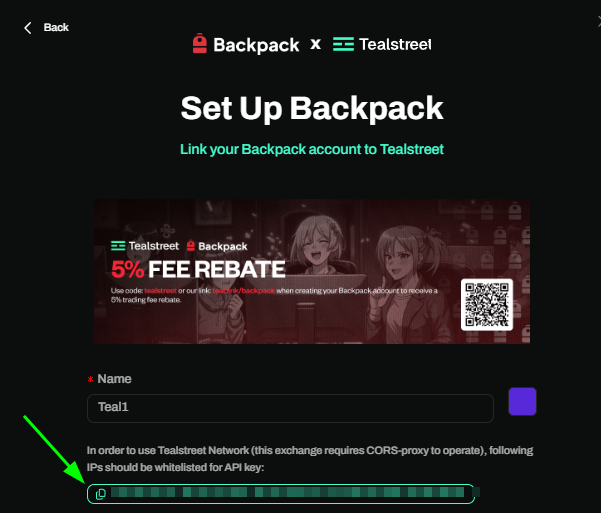
At this time Backpack does not support pasting the IP addresses in one single block. You will need to paste the IP addresses in one by one.
- Now that we have the API Key and the API Secret we can proceed back to the Tealstreet terminal.
Connecting the key to Tealstreet
Now back to where we left the Tealstreet API page:
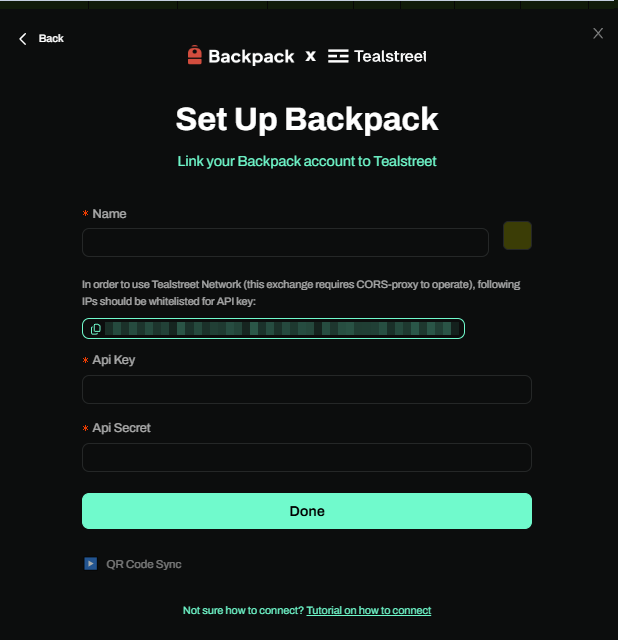
- Proceed to fill out the form with the information you got when you created the API on the Backpack API page.
- Give the key a name, this can be anything you want.
- Choose the color you want your API to be in the terminal.
- Provide the API Key Backpack showed you when you created the key.
- Provide the API Secret Backpack showed you when you created the key.
- Click the Done button.
Never share your API Keys with anyone. Tealstreet team members will never ask you what your API key is.
Be sure to double check you do not confuse API Key and API Secret. Connecting your Backpack exchange account to Tealstreet will not work if these fields are not entered correctly.
If all the details are correct, you will have successfully linked your Backpack account to Tealstreet.
- Close the Settings page and navigate to the Main Trading page. Select the Backpack account you just linked to enable it.
- If properly linked, you will see your balance appear in the Margin window of Tealstreet. Happy trading!!!
- For more information check out our Quick Start Guide.
Troubleshooting
If you encounter any issues connecting your Backpack account to Tealstreet, please refer to the Backpack Support Documentation for additional help and troubleshooting steps.
Frequently Asked Questions
- Does backpack require KYC?
- Yes, Backpack requires users to complete KYC before they can deposit and trade on the platform.