GRVT

Connecting GRVT to Tealstreet
GRVT (pronounced "gravity") is a hybrid cryptocurrency exchange that combines the security and efficiency of centralized exchanges with the transparency and self-custody features of decentralized exchanges. GRVT uses EIP-712 signing with Ethereum private keys for order authentication.
GRVT requires you to use an Ethereum private key to sign orders. This private key is used to derive a Signer Address which must be tagged to your API key in the GRVT UI before you can trade.
Tealstreet now also asks you to complete a one-time Builder Fee Authorization for GRVT to support ongoing development. This authorization is done in your browser wallet and is network-specific (mainnet vs testnet).
Builder Fee Authorization must be signed by the wallet that owns your GRVT main/funding account. If you created your GRVT account with email or social login, GRVT may control an embedded wallet for that main account, and an external browser wallet may not be able to sign the approval from Tealstreet.
- Log into your Tealstreet account.
It's a good idea to keep both Tealstreet and GRVT tabs open for the duration of this process.
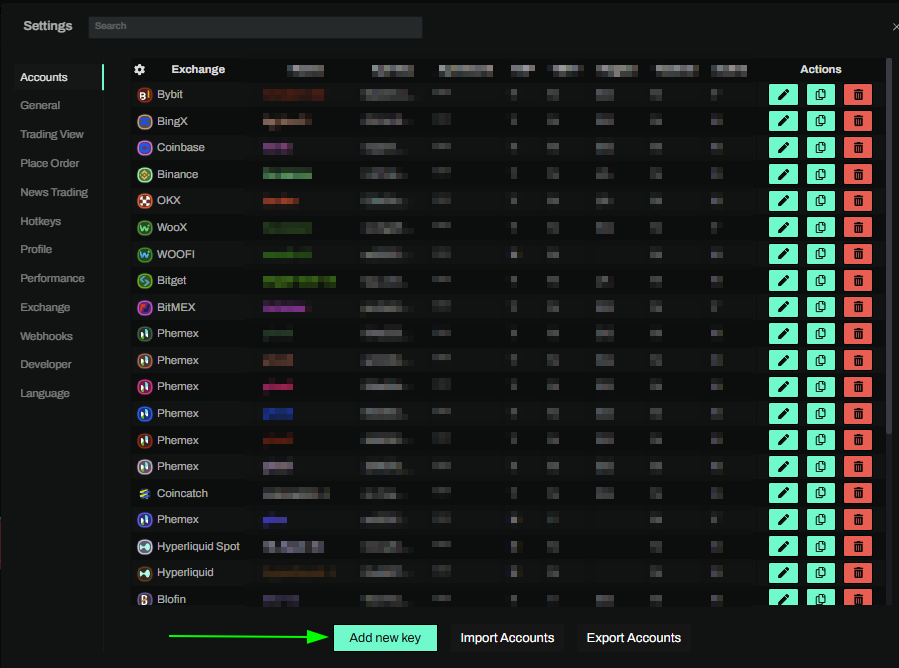
- Click the 'Settings' button near the top right corner of the terminal.

- Click the 'Add new key' button at the bottom of the settings page.
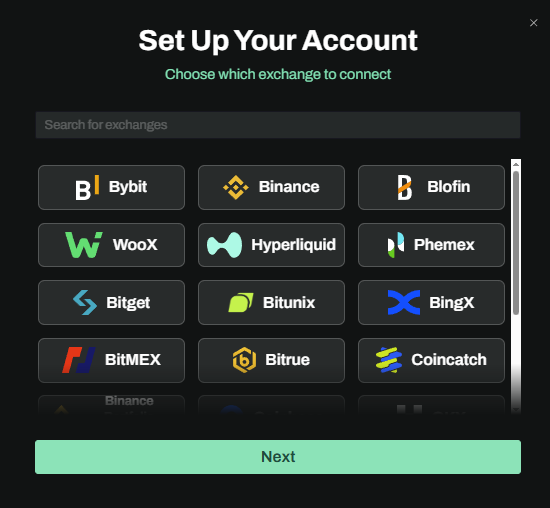
- Choose GRVT from the exchange selection menu.
Okay lets go back to our GRVT account and create the API Key.
Step 1: Creating your SecureKey
You will need to create a SecureKey to be able to create an API Key for integration with Tealstreet.
- Navigate to GRVT and login or create your account if you haven't already.
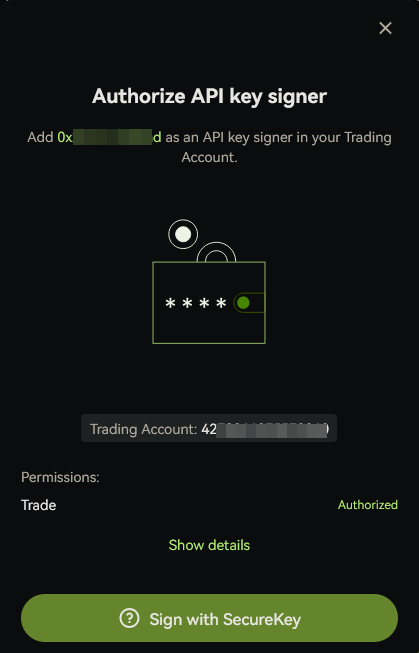
- Click on the Create SecureKey button in the top right corner of the page.
- Follow the prompt steps, including getting the one-time code from your email.
Step 2: Creating your API Key
After you created your SecureKey you will need to create an API Key.
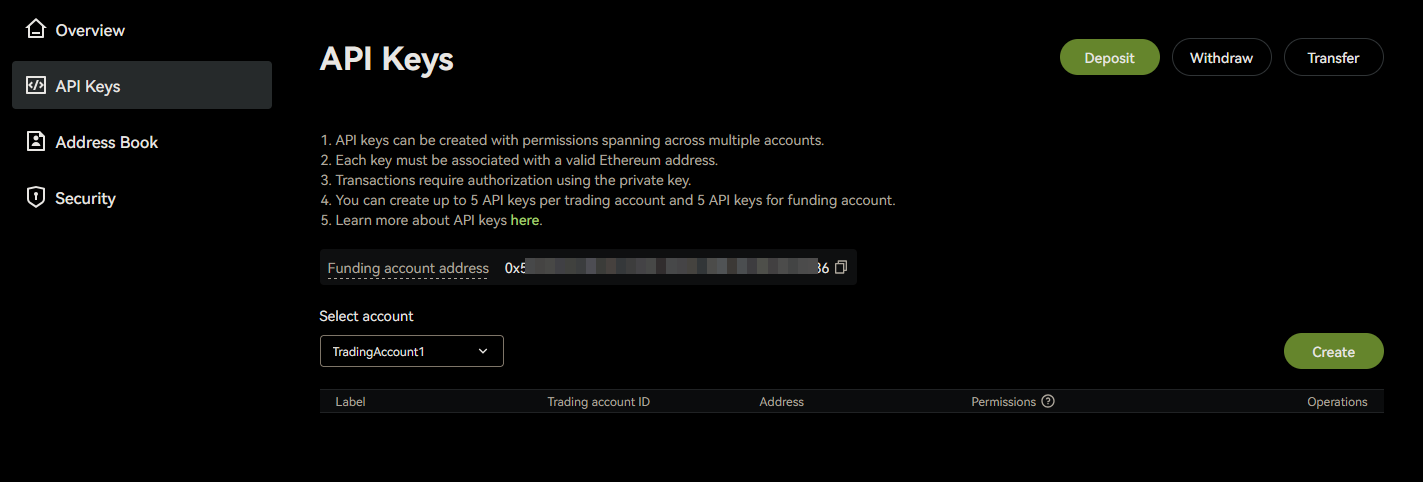
- Click Create to start the api creation process.
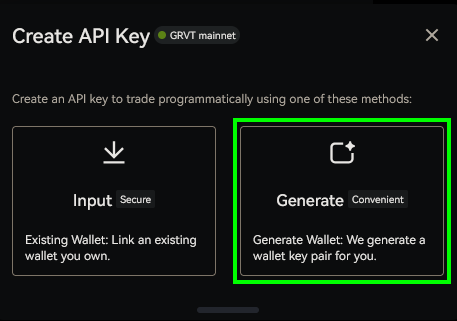
- You can either input an existing wallet or have GRVT generate a new one for you. * For the purposes of this example we will be using the generated wallet.
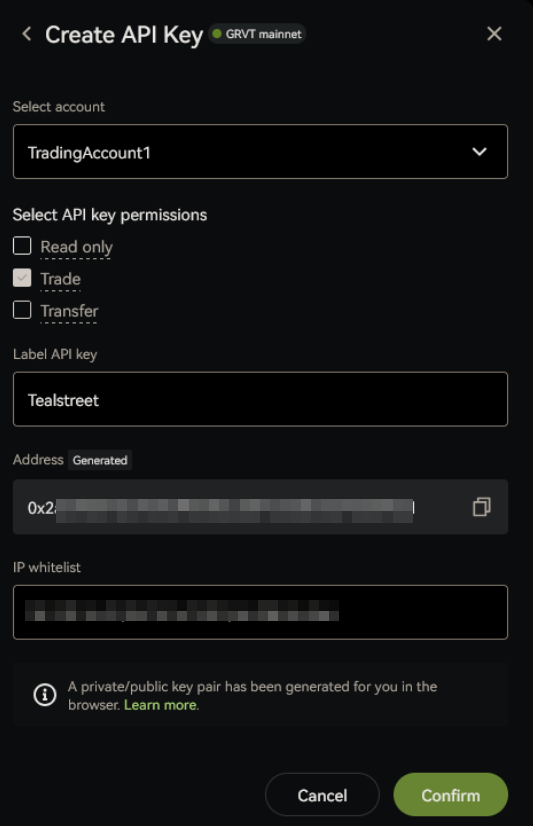
In the Create API Key window:
- Account Type: Trading Account (Not the Funding account)
- Permissions: Select Trade
- Label: Name this whatever you want
- Address: This is your Signer Address that you will need later when linking the key to Tealstreet.
- IP Whitelist: Insert the IP addresses that you can copy from the Tealstreet new API window.
Click Confirm to create the API Key.
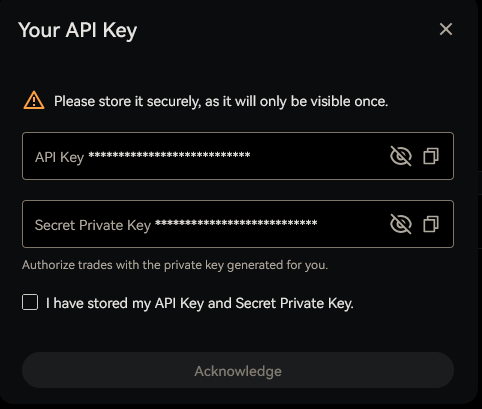
Store the API Key and the Secret Private Key. we now have 3/4 of the information we need to link our GRVT account to Tealstreet.
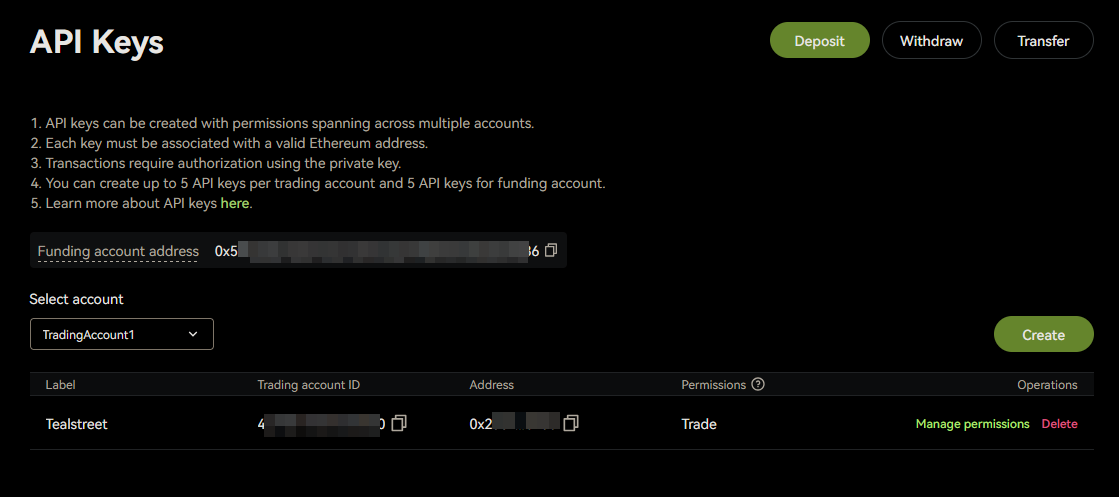
Now you should see your API in the management window. While here lets grab the Trading Account ID for the key we just created.
Step 3: Connecting the key to Tealstreet
Now back to where we left the Tealstreet API page:
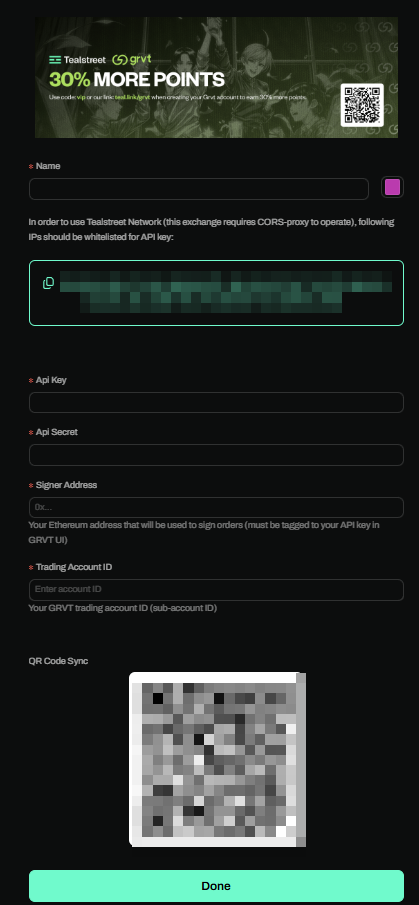
- Proceed to fill out the form with the information you gathered:
- Name: Give the key a name, this can be anything you want.
- Color: Choose the color you want your API to be in the terminal.
- API Key: The API Key you created in the GRVT UI.
- API Secret: Your Ethereum Private Key (64-char hex with or without
0xprefix). - Signer Address: Your Ethereum address derived from the private key.
- Trading Account ID: Your GRVT Trading Account ID / Sub-Account ID.
- Click the Done button.
Never share your API Keys with anyone. Tealstreet team members will never ask you what your API key is.
Be sure to double check you do not confuse API Key and API Secret. Connecting your GRVT exchange account to Tealstreet will not work if these fields are not entered correctly.
If all the details are correct, you will have successfully linked your GRVT account to Tealstreet.
- Close the Settings page and navigate to the Main Trading page. Select the GRVT account you just linked to enable it.
- If properly linked, you will see your balance appear in the Margin window of Tealstreet. Happy trading!!!
- For more information check out our Quick Start Guide.
Step 4: Approve Builder Fee Authorization (GRVT)
After adding your GRVT key in Tealstreet, you may see an Authorize Builder Fee prompt in the account form.
- Click Authorize Builder Fee
- Connect the browser wallet that owns your GRVT main/funding account when prompted
- Approve network switch/add request in your wallet
- GRVT Mainnet: Chain ID
325(RPC:https://rpc.grvt.io)- GRVT Testnet: Chain ID
326(RPC:https://rpc.testnet.grvt.io)
- GRVT Testnet: Chain ID
- GRVT Mainnet: Chain ID
- Sign the EIP-712 authorization message
When successful, Tealstreet will show Builder authorized with the approved fee rate.
If your wallet does not already have the required GRVT network configured, it will first prompt you to add it. This is expected.
Builder fee authorization requires a browser wallet integration (for example, MetaMask). If you are using desktop mode without an injected browser wallet, complete this step in the web app.
If GRVT says the signer is not authorized to represent the main account, check that the selected browser wallet matches the GRVT main/funding address shown on the GRVT API Keys page. Email-created GRVT accounts may use an embedded wallet that is not available to MetaMask or Rabby; those accounts may need GRVT-side wallet export/connection support or a wallet-backed GRVT account before this approval can succeed.
Frequently Asked Questions
- What is GRVT?
- GRVT is a hybrid exchange combining CEX efficiency with DEX transparency. It offers crypto perpetual futures with up to 50x leverage, ultra-low fees, and self-custodial trading.
-
I get an error creating the API key saying access from this location is not allowed?
- GRVT Has geolocational restrictions, Some users may be blocked from trading from certain countries.
-
What builder fee rate does Tealstreet use for GRVT?
- Tealstreet's GRVT builder fee rate is 0.03% (3 bps) on trades routed through Tealstreet.
- This is approved through the one-time Authorize Builder Fee flow in the account form.
-
My wallet asks me to switch/add a chain when I approve builder fee. Is that normal?
- Yes. GRVT builder authorization uses GRVT EVM chain IDs and must match your selected network:
- Mainnet uses chain ID
325 - Testnet uses chain ID
326
- Mainnet uses chain ID
- Yes. GRVT builder authorization uses GRVT EVM chain IDs and must match your selected network:
-
I signed up to GRVT with email. Can I approve the builder fee in Tealstreet?
- Maybe not. The approval must be signed by the wallet that owns your GRVT main/funding account. Email or social-login accounts may use an embedded GRVT wallet that is not exposed to your browser wallet extension, so MetaMask/Rabby cannot sign for it. Use a wallet-backed GRVT account, or ask GRVT how to connect/export the owning wallet.
-
What if I reject the chain switch or signature request?
- The authorization will fail and your builder fee remains unapproved. Re-open the account settings and run Authorize Builder Fee again.
-
Where can I get more help?
- Visit the GRVT Help Center for comprehensive documentation and support.
Additional Resources
- GRVT Main Website: grvt.io
- GRVT Help Center: help.grvt.io/en
- GRVT API Documentation: api-docs.grvt.io
- Tealstreet Discord: teal.link/discord