Lighter


Connecting Lighter to Tealstreet
- Log into your Tealstreet account.
It's a good idea to keep both Tealstreet and Lighter tabs open for the duration of this process.
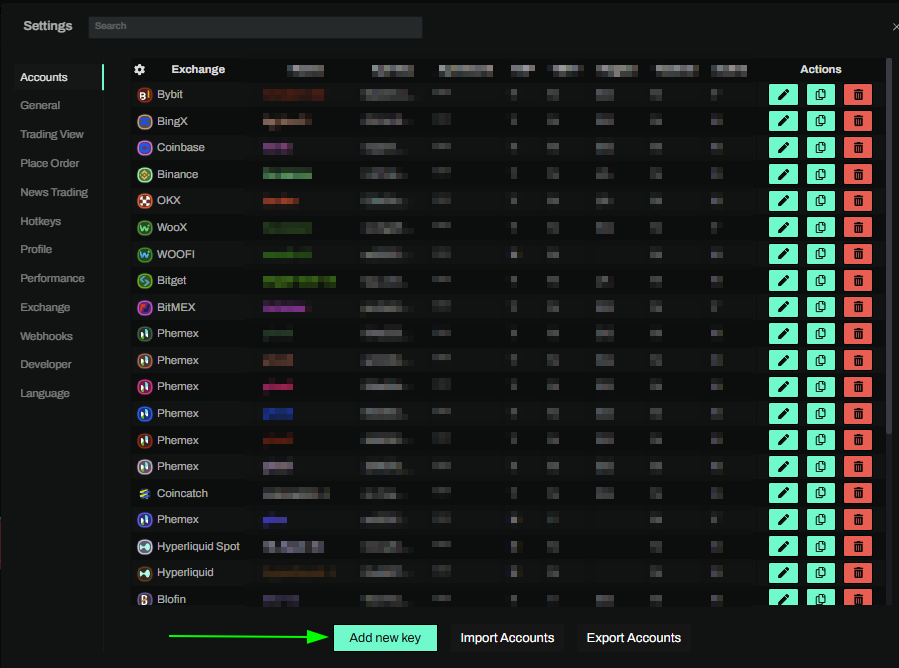
- Click the 'Settings' button near the top right corner of the terminal.

- Click the 'Add new key' button at the bottom of the settings page.
- Choose Lighter from the exchange selection menu.
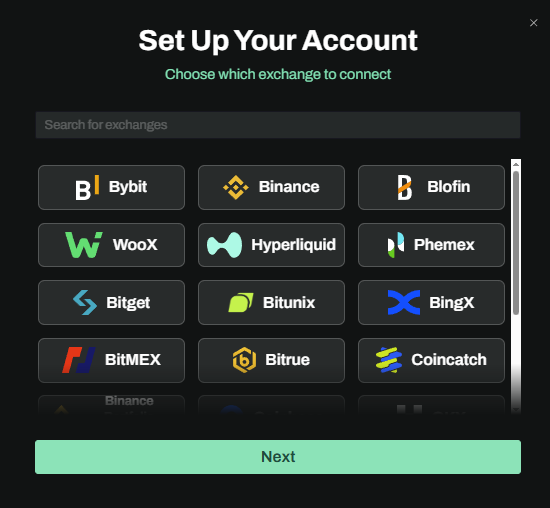
Okay lets go back to our Lighter account and create the API Key.
Creating the key
- Now we are ready to generate the API Key. Head on over to Lighter and:
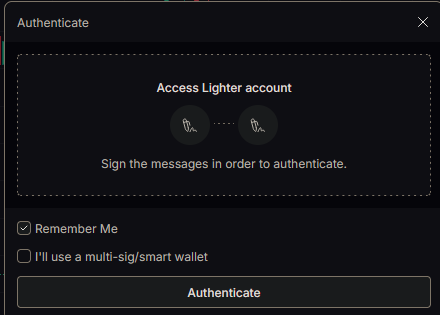
- Login or connect your wallet when the window pops up
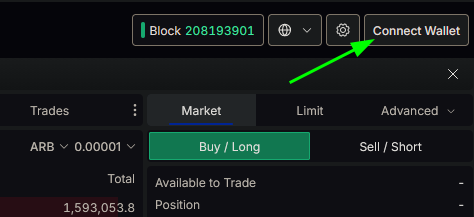
- If a window did not automatically pop up click the connect button at the top right of the page
- Login or connect your wallet when the window pops up
Lighter's main website may be unavailable in restricted jurisdictions. If you cannot access it, review Lighter's Terms and regional availability requirements before continuing.
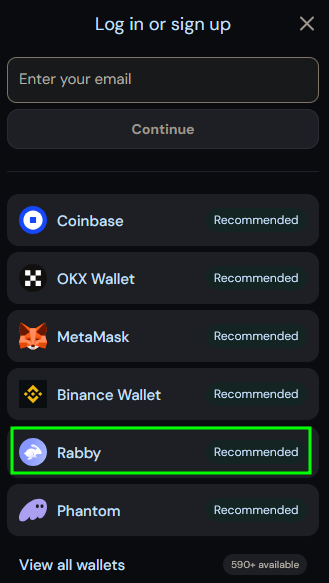
- For this guide we will be using the Rabby wallet.
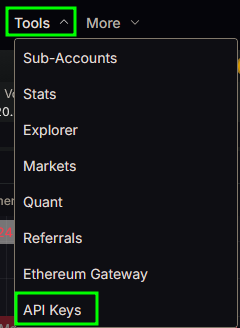
- Once you are connected to your wallet, navigate to the API Key page by clicking the Tools button at the top and choosing API Keys from the dropdown menu.
- Click the Generate API Key button to begin the process.
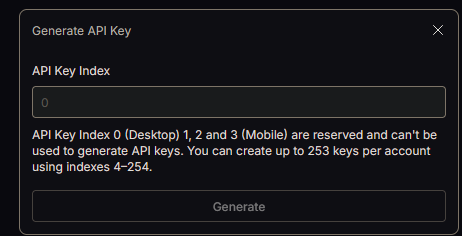
- At the time of this writing there is no IP Whitelist option.
- Input an API Key Index and click the Generate button.
- Keys 0 through 3 are usually used by Lighter. So you should start with index 4 and up.
- Lighter supports making maker-only keys. For most users this is not recommended.
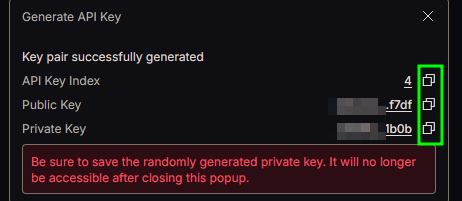
- Securely store the API Key information.
- When done close the window and return to Tealstreet.
Connecting the key to Tealstreet
Now let us proceed back to where we left the Tealstreet API page:
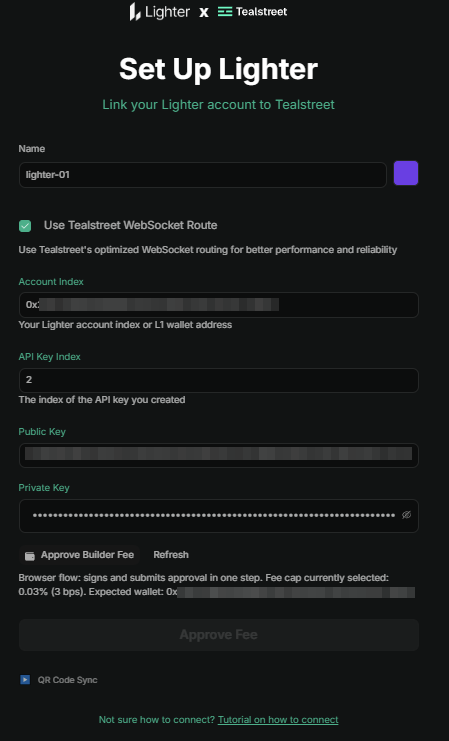
- Proceed to fill out the form with the information from your Lighter API key setup:
- Name: Enter any label you want (for example,
lighter-01). - Color: Choose the color you want this account to use in the terminal.
- Use Tealstreet WebSocket Route: Keep this enabled for Tealstreet's optimized WebSocket routing unless you have excellent internet and are not in a restricted jurisdiction.
- Account Index: Enter the numeric Lighter account index shown in the Lighter API key window. Tealstreet can sometimes resolve an L1 wallet address, but the numeric account index is preferred and avoids ambiguity across Lighter deployments such as Robinhood Chain.
- API Key Index: Enter the numeric index of the API key you created. Lighter recommends using an index of 4 or higher.
- Public Key: Paste the public key exactly as shown in Lighter.
- Private Key: Paste the private key exactly as shown in Lighter.
- Approve Builder Fee: Tick the box to approve Tealstreet as a builder if you permit it to charge fees on your behalf. This is required for attributed orders to be placed through Tealstreet.
- Click Done.
- Name: Enter any label you want (for example,
Lighter usually reserves API Key Indices 0 through 3 for their own use and they recommend you use 4 and up.
Frequently Asked Questions
-
What is a builder fee, and does Lighter charge one?
- A builder fee is an integrator fee configured through Lighter's Partner Attribution Program. It allows a partner frontend, such as Tealstreet, to charge trading fees on orders routed through that frontend after the user approves the fee configuration.
- Lighter currently charges no maker or taker fees for Standard Accounts, as described in Lighter's Trading Fees docs.
- Tealstreet's Lighter API form does not charge a fee just for linking your key. During the link flow, you approve Tealstreet as a builder partner to charge 0% maker and 0.025% (2.5 bps) taker fees on trades routed through Tealstreet. This also applies to the Robinhood chain on Lighter.
-
What are Lighter account tiers?
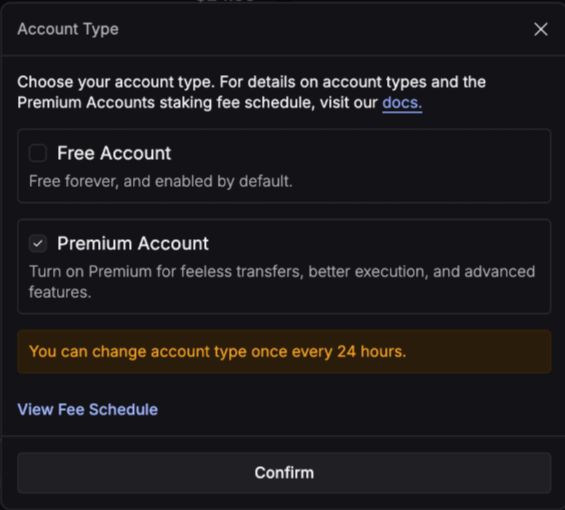
- Lighter has Standard, Premium, and Plus account tiers. These can affect fees, latency, rate limits, and official competition eligibility.
- You can switch tiers in Tealstreet from Settings → Profile → Lighter → Lighter Account Tier.
- Switching tiers has a 24h cooldown and can only be done when there are no open orders or positions.. Read more in Lighter's official account type docs.
note
Lighter at the time of this writing does not support changing to Plus tier over their exchange UI. You can of course change to this tier in the Tealstreet Lighter Settings. Different tiers have different fees, latency, and rate limits. :::
- Why did my API Expire suddenly?
- Lighter utilizes the first 4 (0-3) indices for their own use. If you re-auth using their front-end it can reset the first 0-3 indices. This is why Lighter recommends using an index of 4 or higher to avoid this issue.
Advanced order type fees
Lighter charges a separate fee for some advanced order types, including RFQ, Chase, Iceberg, and TWAP orders. On Standard accounts, these advanced order types include a 0.01% fee; on Plus accounts, the fee is 0.005%.
Regular limit and market orders remain free. To use these advanced order types, Lighter may ask you to sign a one-time message authorizing the fee and accepting the applicable Terms of Service.
Robinhood Chain deposits
To trade on the Robinhood sub-chain hosted through Lighter, users need to bridge USDG onto Robinhood Chain first.
At the time of this writing, Robinhood covers the gas fees for these transactions even if the user has no gas available on Robinhood Chain. Users will need to make sure they authenticate their Lighter account to Robinhood Chain before they can trade after the deposit is completed.
Never share your API Keys with anyone. Tealstreet team members will never ask you what your API key is.
Be sure to double check you do not confuse API Key and API Secret. Connecting your Lighter exchange account to Tealstreet will not work if these fields are not entered correctly.
If all the details are correct, you will have successfully linked your Lighter account to Tealstreet.
- Close the Settings page and navigate to the Main Trading page. Select the Lighter account you just linked to enable it.
- If properly linked, you will see your balance appear in the Margin window of Tealstreet. Happy trading!!!
- For more information check out our Quick Start Guide.