OKX


Connecting OKX to Tealstreet
Account Mode
Before you can trade futures / derivatives on OKX, users must change their Account Mode to Futures mode.
Users cannot trade futures / derivatives if their OKX account is not set to ‘Futures Mode’.
-
Log into your OKX account.
-
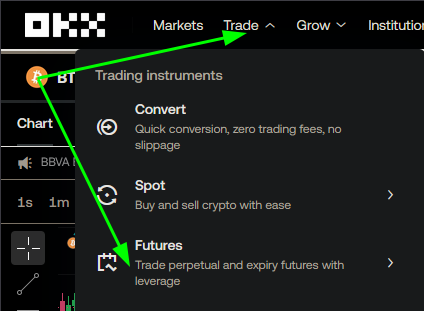
Navigate from Trade to Futures Trading
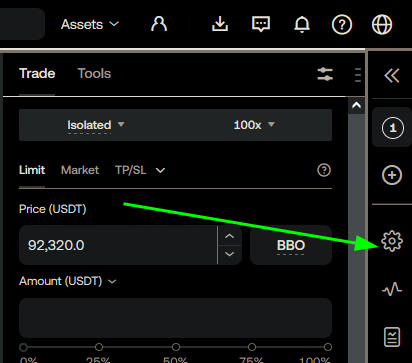
- Click the Gear icon on the right of the screen
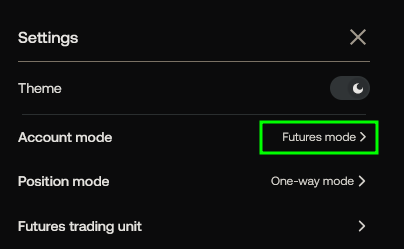
- Next, click the option titled ‘Account Mode.’
- Then, select and activate Futures account mode.’
- Then, select and activate ‘Futures mode.’
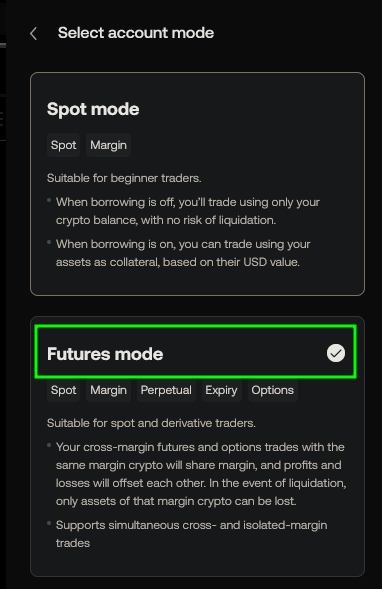
- Once activated, you will have successfully enabled futures trading and will be able to trade with the Tealstreet terminal.
Continue reading to learn how to create and connect an OKX API to the Tealstreet trading Terminal
Connecting the OKX api key to Tealstreet
- First, make sure you are logged into your OKX account.
Consider supporting Tealstreet by using the referral link.
- Log into your Tealstreet account.
It's a good idea to keep both Tealstreet and OKX tabs open for the duration of this process.
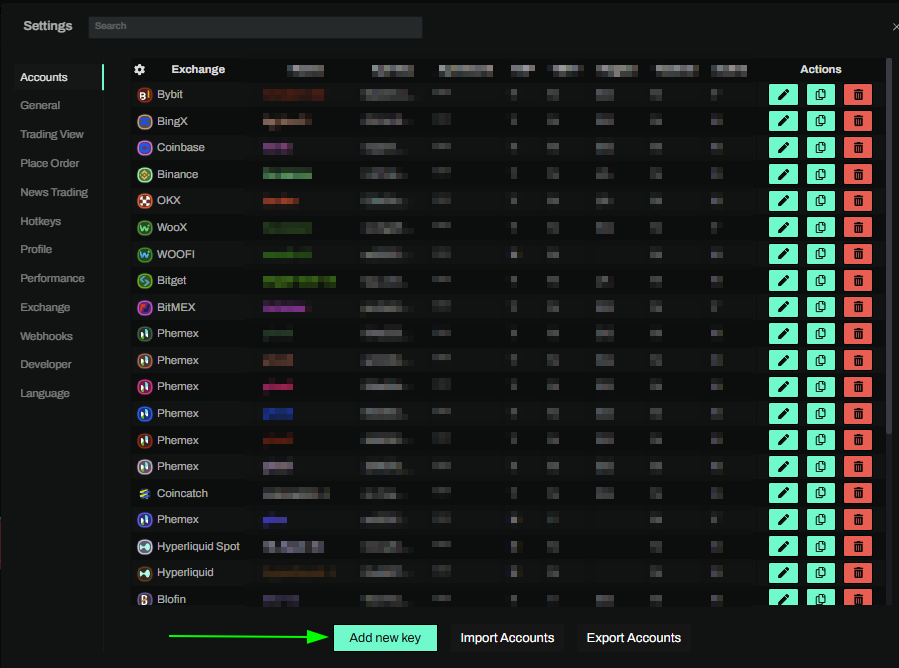
- Click the 'Settings' button near the top right corner of the terminal.

- Click the 'Add new key' button at the bottom of the settings page.
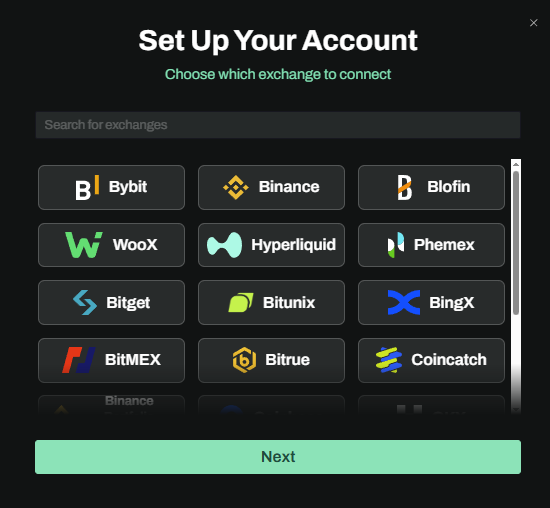
- Choose OKX from the exchange selection menu.
Okay lets go back to our OKX account and create the API Key.
Creating the exchange API key
- Now you are ready to generate the API Keys within your OKX Account. Lets return to the OKX tab we opened earlier:
- Click on the User Icon.
- Select API from the dropdown menu.
- Click on the User Icon.

You can get to this page directly by navigating OKX API management page
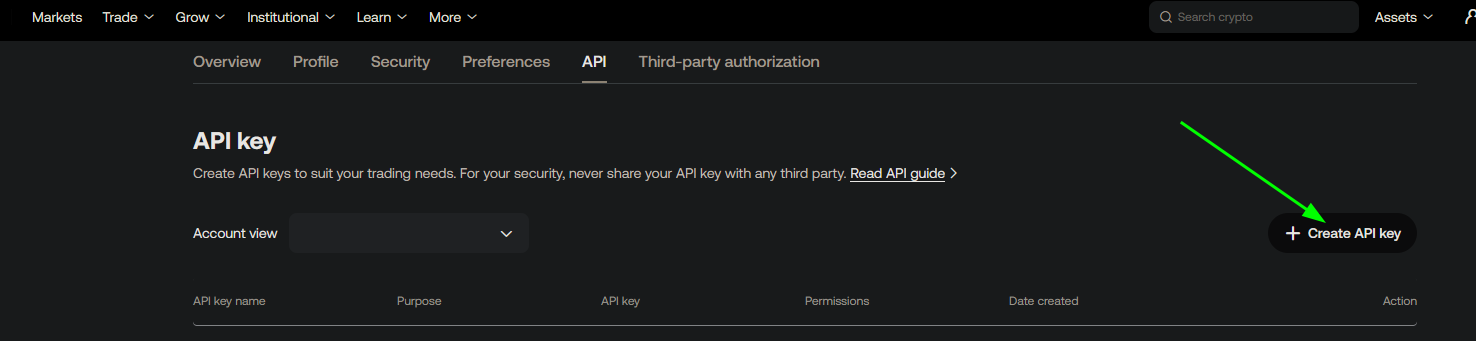
- On the API Key page click on the Create API Key Button to start the key creation process.
- Now you are ready to create the API key for Tealstreet.
-
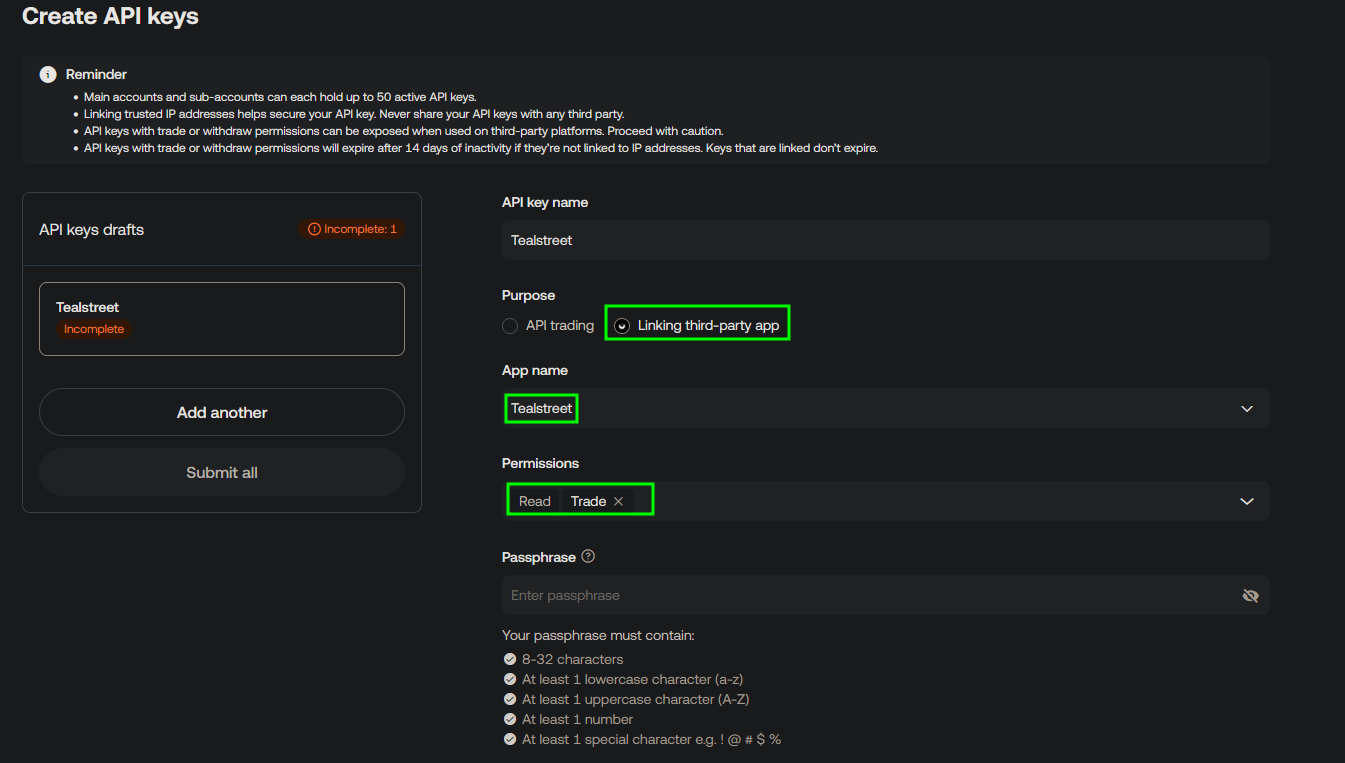
‘API Name’ You can choose any name you like for this section. It can be helpful to use a name related to Tealstreet in case you have many API keys for different services.
-
Choose ‘Linking Third-Party App.’
-
Select 'Tealstreet' From the drop down menu.
-
Ensure "Trade" permission is enabled. This will ensure you can trade on Tealstreet.
-
‘Passphrase’ OKX requires users to choose a password for each API key.
-
Double check all the selections are correct and then click 'Submit'.
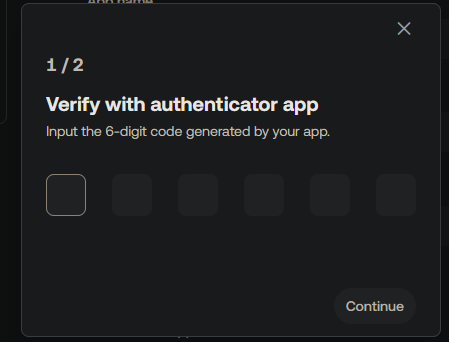
- A popup will appear next and prompt you to submit the email code and the 2FA from your Authentication App.
Two-Factor Authentication
-
Using a phone number for 2-factor authentication (2FA) is not recommended. Consider keeping a paper copy of your 2FA backup codes in case you ever lose access to your 2FA device.
-
Once you submit the 2FA code, you will see a new popup from OKX with your API Key details. You need to paste those details into the API Key page of Tealstreet.
You will need to input this on the Tealstreet terminal website so it is a good idea to keep and/or save this passphrase.
Never share your API Keys with anyone.
Tealstreet API Setup
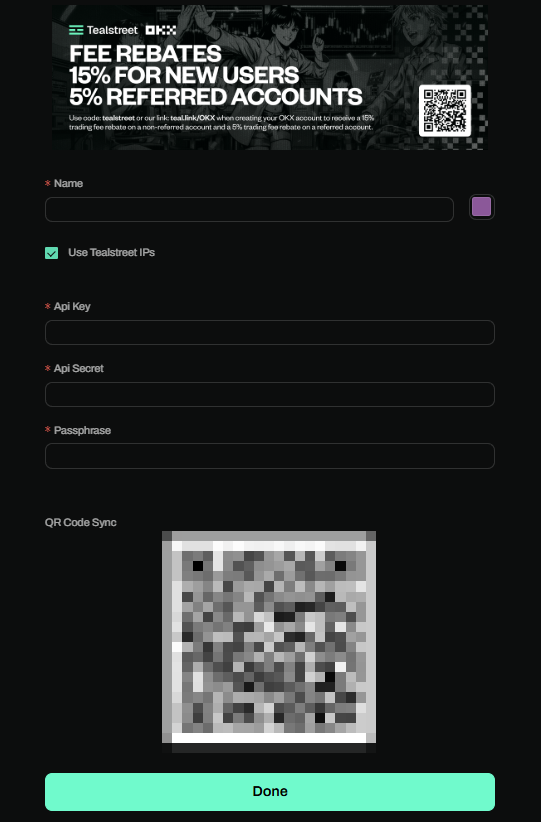
- Lets return back to where we left off in the Tealstreet API creation window.
-
- ‘Name’ - Here you can choose a name for your API Key. This is helpful for traders who utilize multiple exchanges and/or sub accounts and want to distinguish between them.
- ‘Color’ - Choose the color you want this API key to appear as on the terminal.
- ‘Use TealStreet Ips’ - Ensure this is toggled on unless you will be doing custom ip whitelisting.
- ‘Api Key’ - Paste the API Key provided by OKX here.
- ‘Api Secret’ - Paste the API Secret provided by OKX here.
- ‘Passphrase’ - Enter the ‘Passphrase’ you chose on the OKX Create API key page on their website.
- Click ‘Done’
If you ever forget your API Key Passphrase you can always delete it & create another API Key on the OKX website.
Never share your API Keys with anyone. Tealstreet team members will never ask you what your API key is.
Be sure to double check you do not confuse API Key and API Secret. Connecting your OKX exchange account to Tealstreet will not work if these fields are not entered correctly.
If all the details are correct, you will have successfully linked your OKX account to Tealstreet.
- Close the Settings page and navigate to the Main Trading page. Select the OKX account you just linked to enable it.
- If properly linked, you will see your balance appear in the Margin window of Tealstreet. Happy trading!!!
- For more information check out our Quick Start Guide.