Connecting Your Exchange Accounts
Tealstreet trades through API keys from your exchange. There are three ways to get them onto your phone:
| Way | Use it when |
|---|---|
| Cloud key sync | You already use Tealstreet on your computer. Your keys appear on their own. |
| Scan a QR code | You want one account from your computer, without turning on cloud sync. |
| Enter a key by hand | You're new, or the key isn't in Tealstreet yet. |
Sign in on the phone before you add a key (see Getting started). Keys are saved to your Tealstreet account.
Cloud key sync
Cloud sync keeps the same API keys on every device you sign in on. Your keys are encrypted on your device with a cloud sync password before they're stored, and Tealstreet never sees that password.
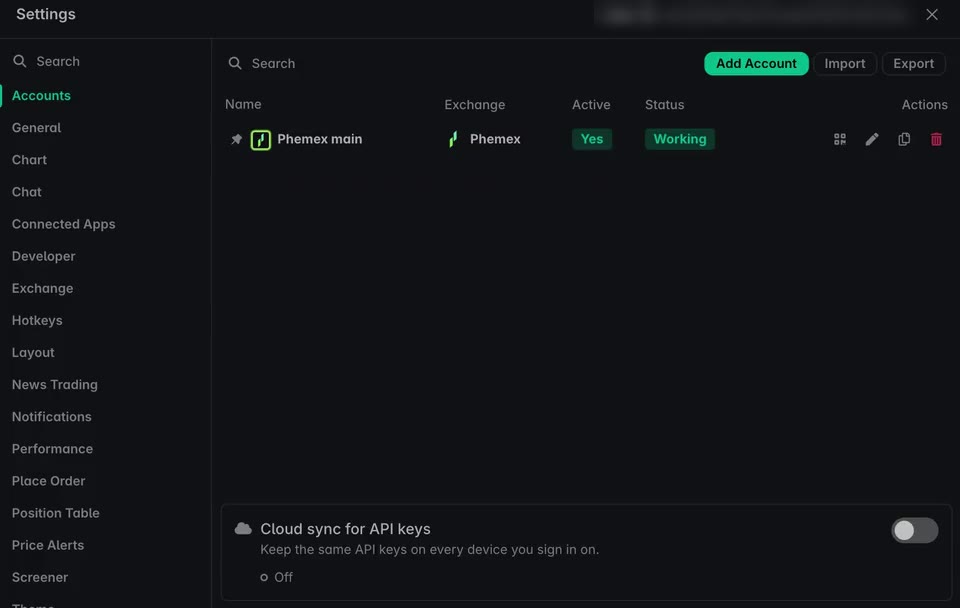
Cloud sync must be on for your account: in the Tealstreet web app, open Settings → Accounts and turn on Cloud sync for API keys. It's one setting for your whole account. Each device then asks for your cloud sync password once.
 1
On your computer: turn on cloud sync
In the web app, open Settings → Accounts and flip Cloud sync for API keys on.
 2
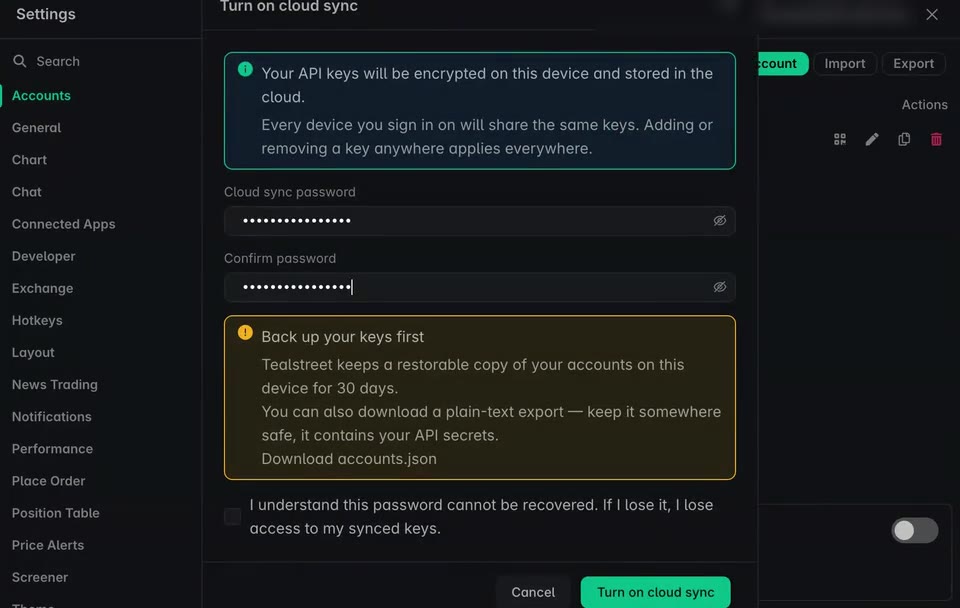
Choose a cloud sync password
Type the password twice (1), tick that it can't be recovered (2), then Turn on cloud sync (3). Keep the password somewhere safe: if you lose it, you lose access to your synced keys.
 3
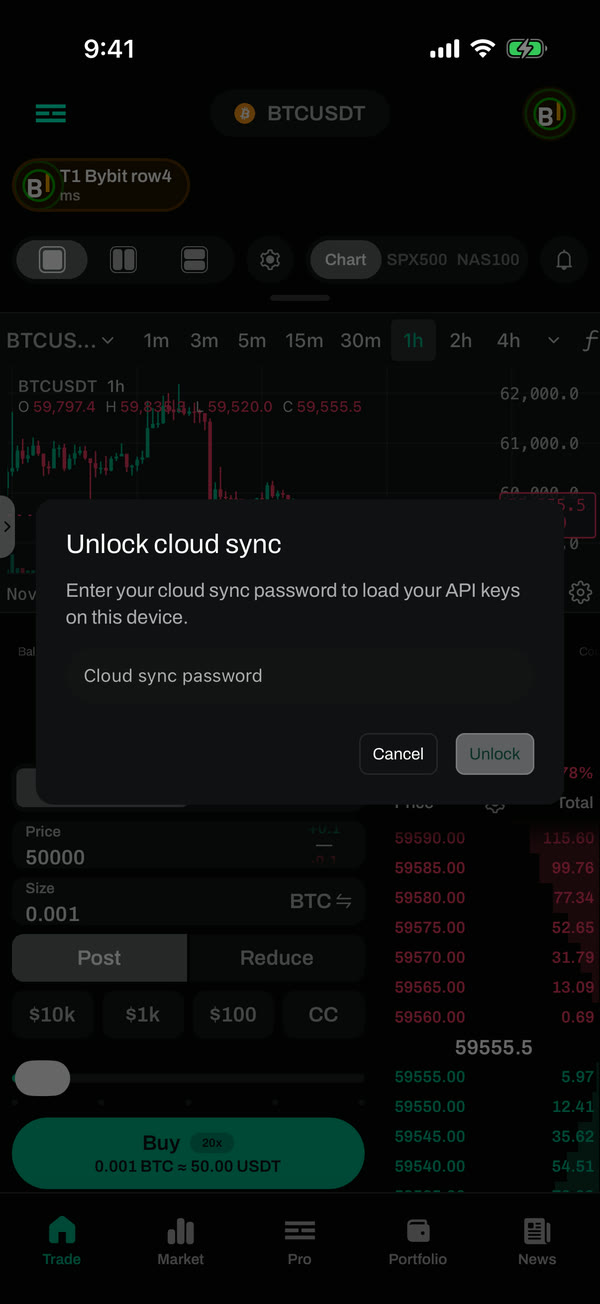
On your phone: unlock cloud sync
Open the app. It asks for your cloud sync password once: type it (1) and tap Unlock (2). Unlocking takes a few seconds.
 4
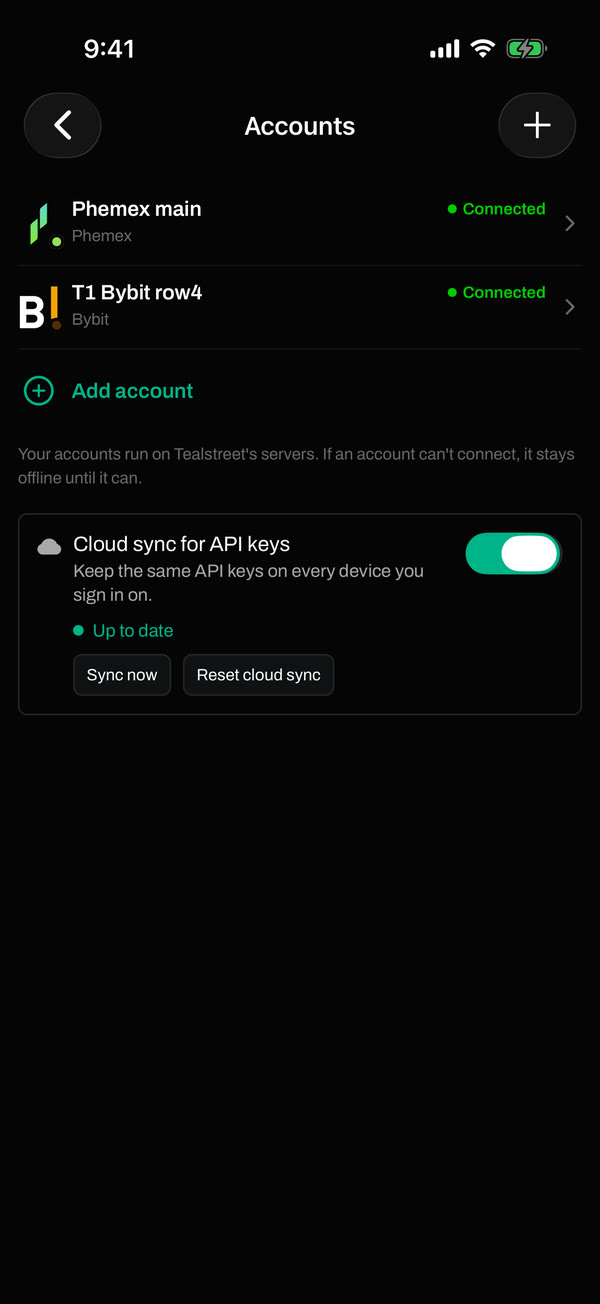
Your keys are here
Every account from your other devices is now on the phone (1) and connects on its own. Settings → Accounts shows Up to date (2). Keys you add or remove on any device now change everywhere.
Scan a QR code
A QR code carries one account from the web app to your phone. Treat it like a password: it contains the API key and secret.
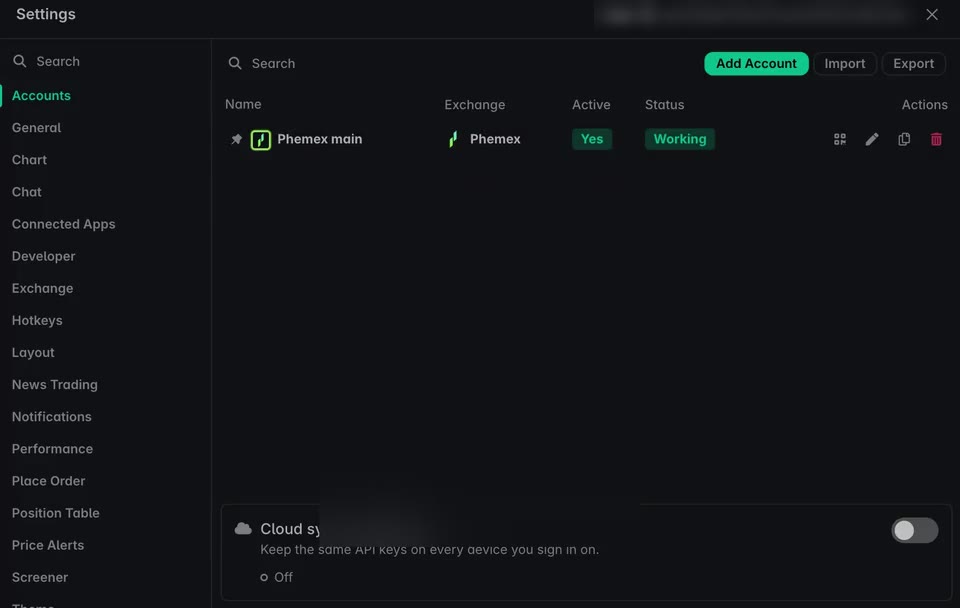 1
On your computer: open QR Code Sync
In the web app, open Settings → Accounts and click the QR icon (QR Code Sync) in the account's Actions column.
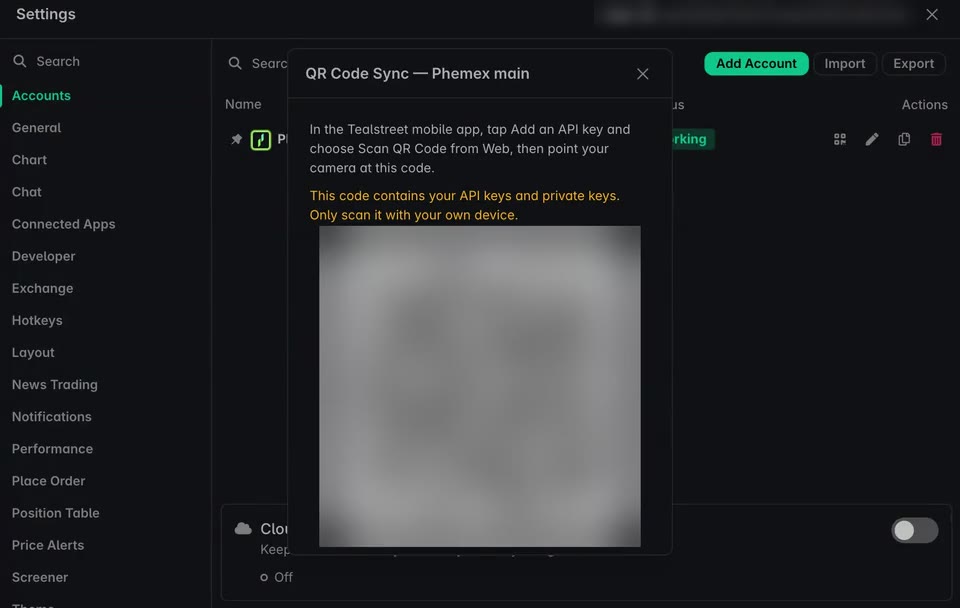 2
Keep the code on screen
The dialog says what to do on the phone (1) and shows the code (2). It's blurred here; yours is sharp. Only scan it with your own phone.
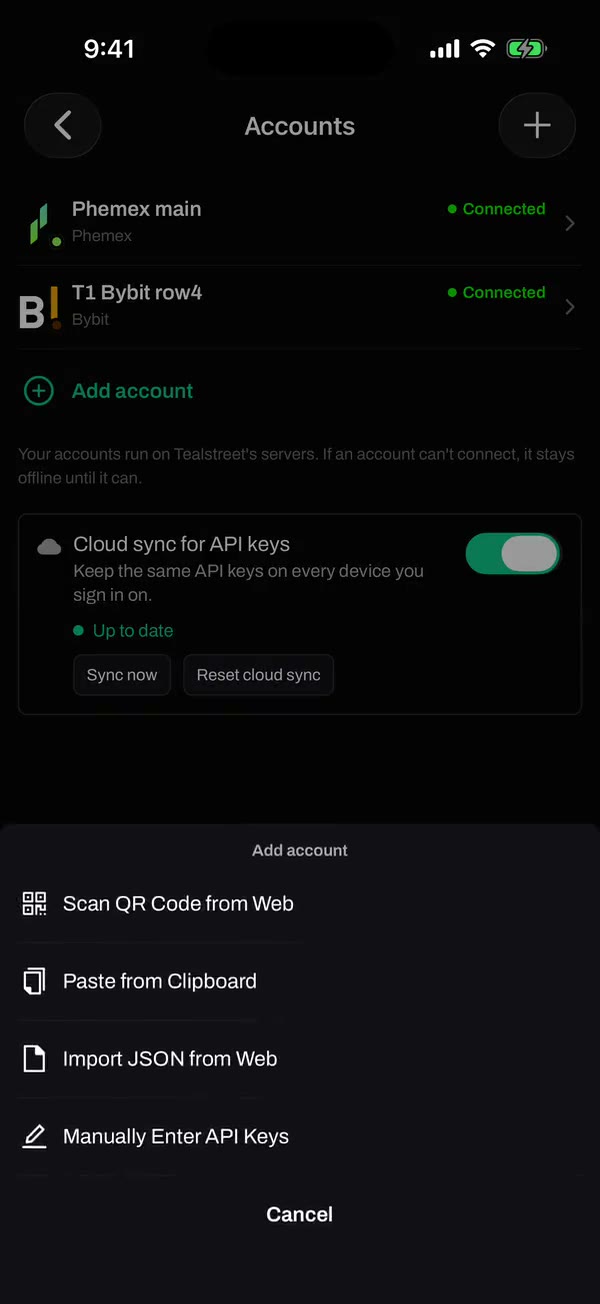 3
On your phone: Scan QR Code from Web
Tap Add an API key (or side panel → API keys → Add account), then Scan QR Code from Web.
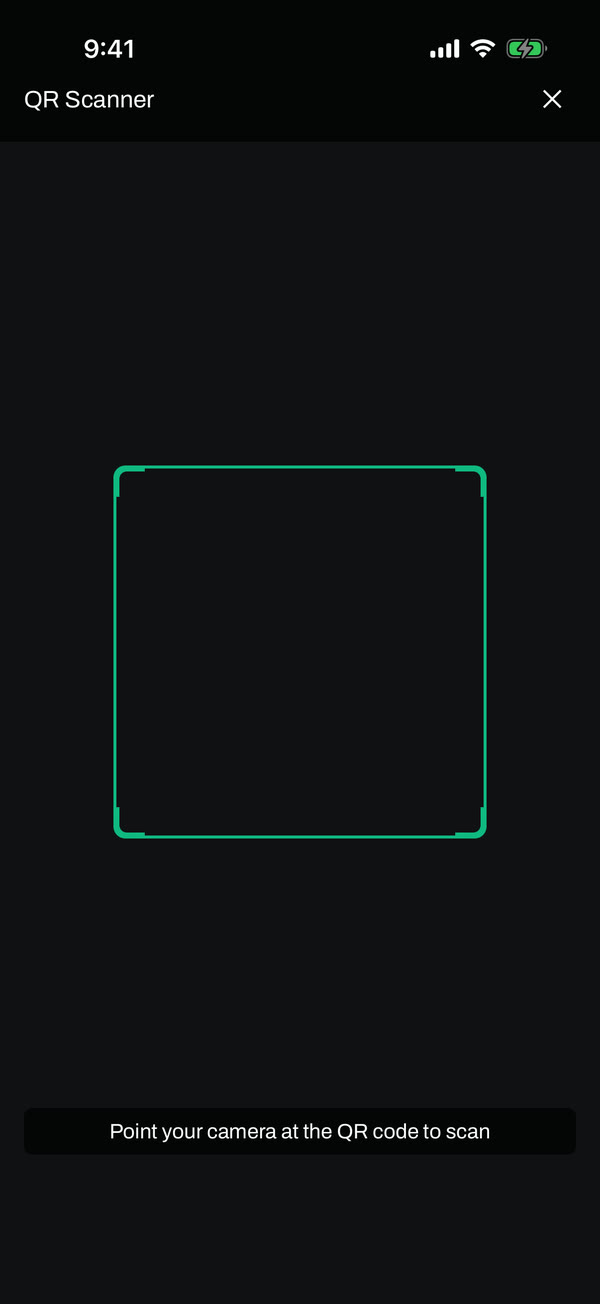 4
Point the camera at the code
Line the code up in the frame. When the import finishes you'll see Import successful, and the account connects. Allow camera access if the phone asks.
Enter a key by hand
Create the key in your exchange's API settings first. Give it read and trade permissions, never withdrawal. For step-by-step help on a particular exchange, see the Connect guides.
- 1
Manually Enter API Keys
Tap Add an API key (or side panel → API keys → Add account), then Manually Enter API Keys.
 2
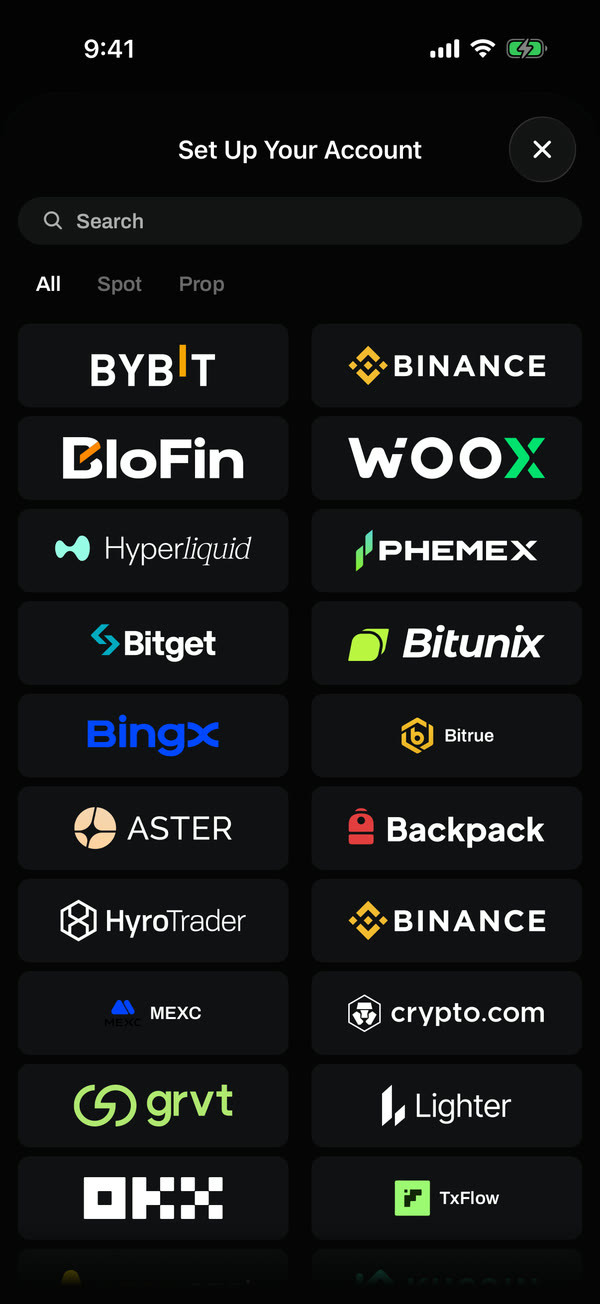
Pick your exchange
Find your exchange with Search or the category tabs, and tap it.
 3
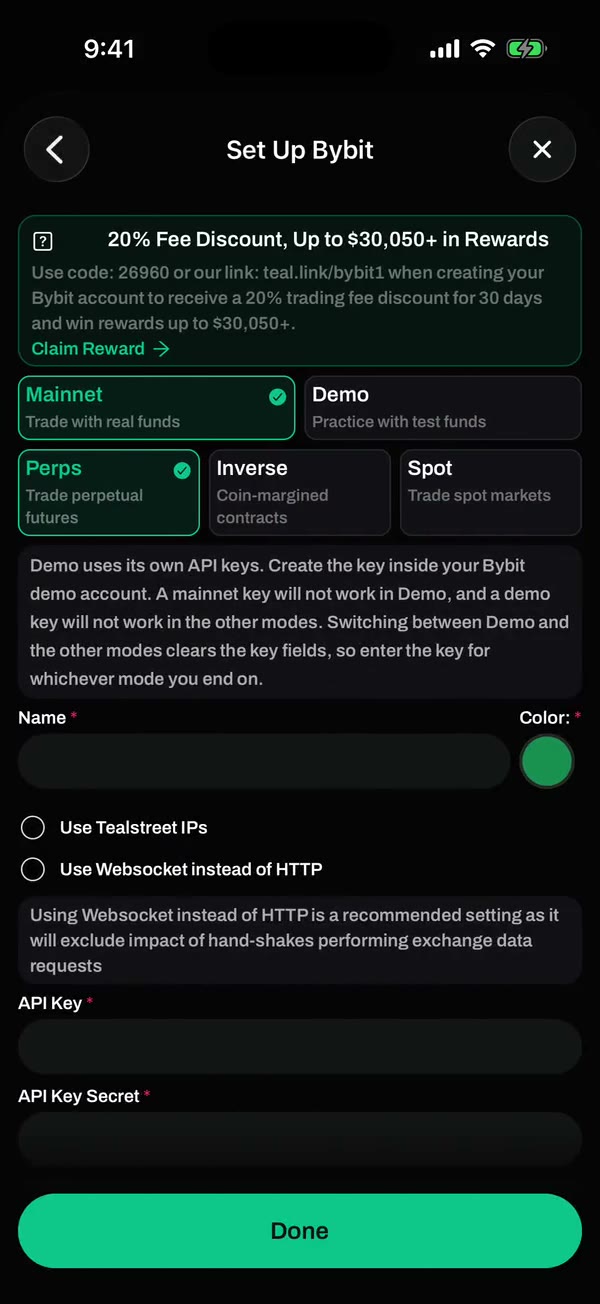
Fill in the key
Give the account a Name (1). If your key uses an IP whitelist, tick Use Tealstreet IPs (2) and add the IPs it shows to the key on your exchange. Paste the API Key and API Key Secret (3); some exchanges also need a passphrase. Tap Done (4).
 4
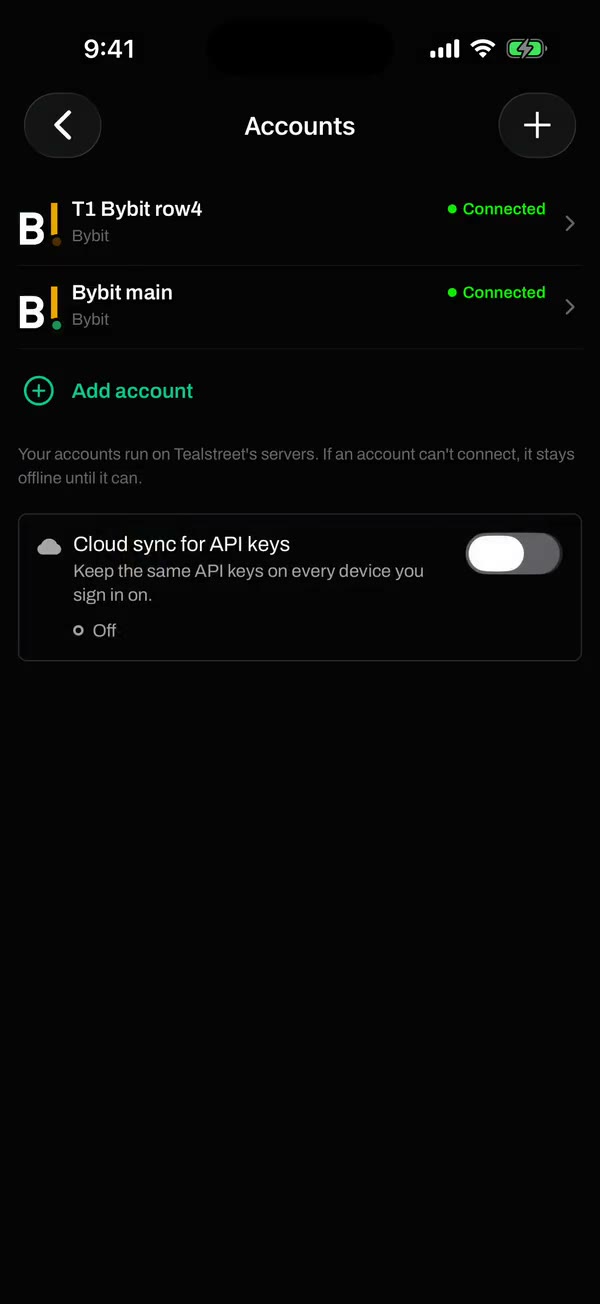
Connected
Tealstreet checks the key with the exchange before saving it. The account shows Connected (1).
Editing or removing an account
Open Settings → Accounts (side panel → API keys). Tap an account's row to change its name, keys and options. Delete Account at the bottom of its form removes it from Tealstreet after you confirm; the key stays valid on the exchange until you delete it there.
Troubleshooting
The key was saved but won't connect ("Error validating…")
- "The account is not connected because its API key was not accepted. Check the … Tealstreet IP addresses and key permissions": the key has an IP whitelist. Tick Use Tealstreet IPs and add those IPs to the key on your exchange.
- "Couldn't read this account's balance. Check the API key permissions and try again.": the key needs read and trade permissions.
- "Couldn't reach Tealstreet's servers…" or "The exchange took too long…": a connection problem. Try again in a moment.
- "Please input your …": a required field is empty.
"Couldn't unlock cloud sync"
Check the password and your connection, then try again. The cloud sync password is not your Tealstreet login password. If you've lost it, use Reset cloud sync on a device that's still unlocked.
"Invalid QR Code" or "Invalid JSON format"
The scan failed, or the code isn't a Tealstreet account code. In the web app, open QR Code Sync again and scan the code it shows.
The camera won't open
If you see "Camera access is required to scan QR codes.", tap Open Settings and allow camera access for Tealstreet, then try again.