Placing Your First Trade
This walkthrough assumes you're signed in and have connected an exchange account.
The mobile app doesn't ask "are you sure?" before sending an order or closing a position. The order button, Close and ✕ All all act on the first tap. Start with a small size until you're used to the controls.
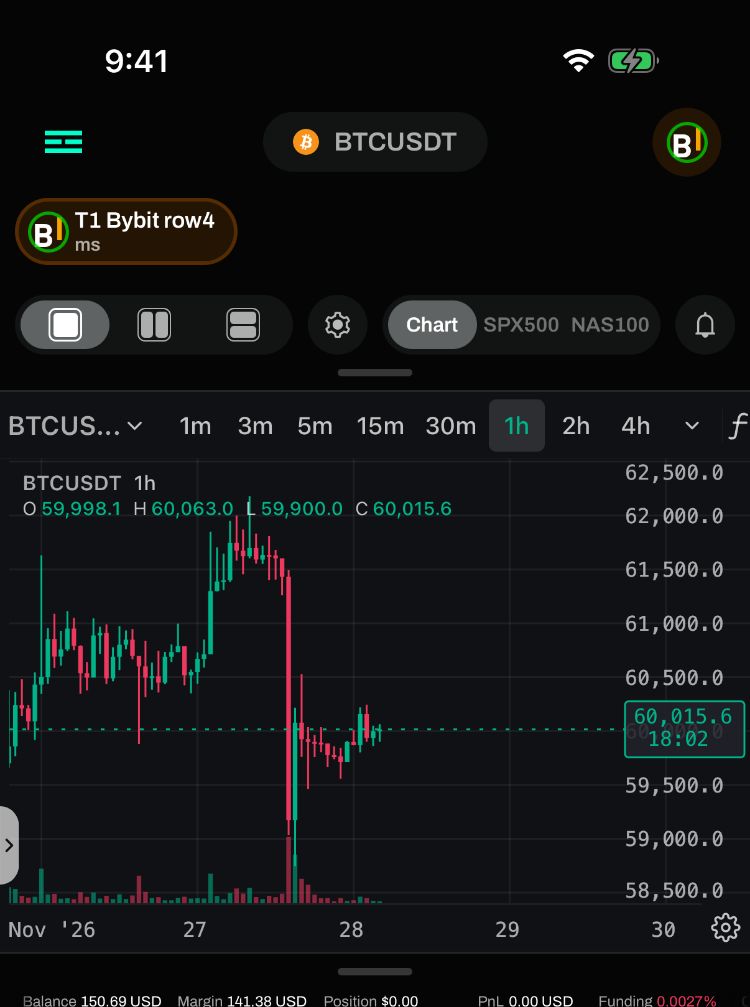
Pick the account and market
- Account: under the top bar there's an account bar with a pill for each of your accounts. It's open when the app starts. Tap the account you want. The circle at the top-right shows the active account and opens or closes that bar.
- Market: tap the symbol in the middle of the top bar and search for the market, for example
BTCUSDT.
How the Trade tab is laid out
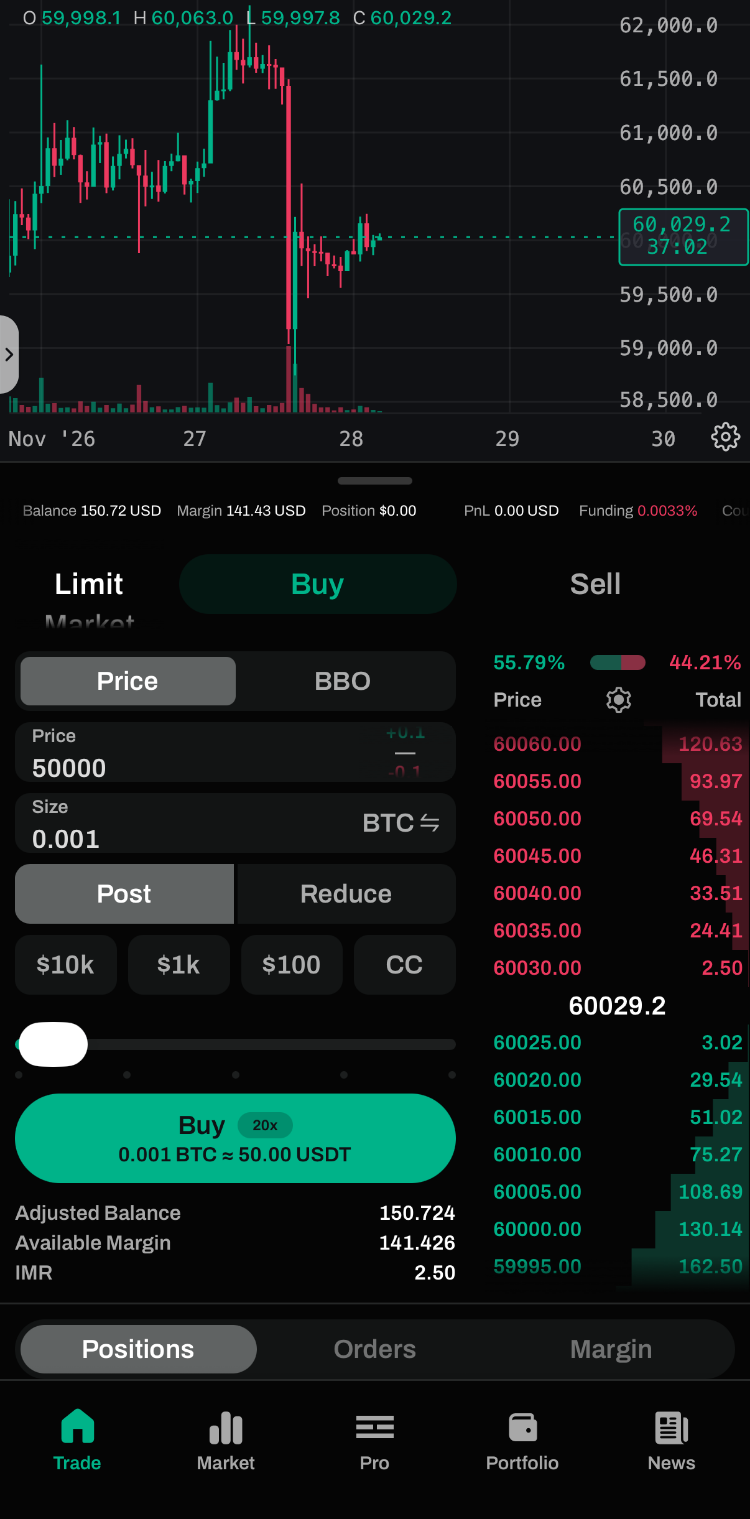
From top to bottom: the chart, a margin strip, the order type selector, the order form with the order book beside it, and then the Positions, Orders and Margin tabs.
The order type selector switches between:
| Type | What it does |
|---|---|
| Limit | Rests on the order book at your price until it fills or you cancel it. |
| Market | Fills straight away at the best available price. |
| Quick | Rows of one-tap buy and sell orders a few ticks from the current price (see Quick). |
| Scaled | Spreads several limit orders between an Upper Price and a Lower Price. |
| TP/SL | A stop order that protects an open position. |
Above the form are the Buy and Sell pills. They only choose the side; they don't send anything. The order is sent by the big order button under the form. It's labelled Buy or Sell to match the side you picked, and shows the size and leverage. Under the button, an info card shows Adjusted Balance, Available Margin and the initial margin the order will use.
Size: type the size into the Size field. The dollar buttons (for example $100) add that much notional to the current size each time you tap them, and CC clears the size.
If you see "Set leverage to trade"
Some exchanges have no leverage setting for a market until you choose one. The form then shows a Set leverage to trade button. Tap it and choose a leverage on the slider. (The slider on the Margin tab does the same.) Tealstreet sends the leverage to the exchange as soon as you stop moving the slider, and the order button unlocks.
Place a market order
 1
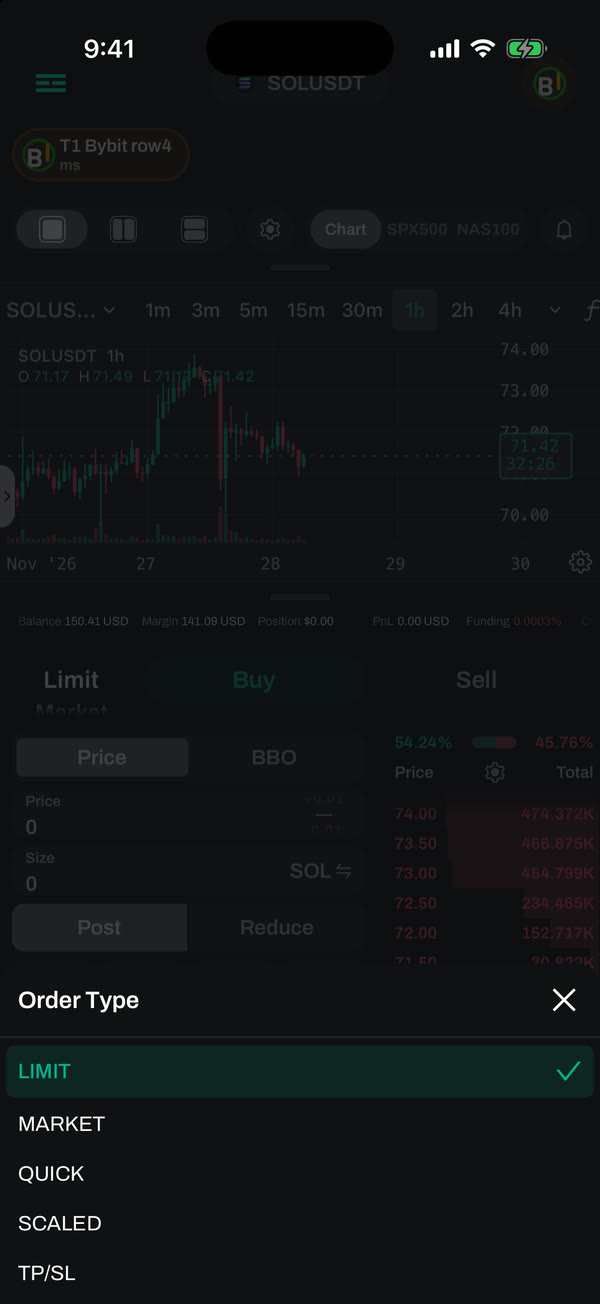
Choose Market
Tap the order type on the left of the form, then MARKET (1).
 2
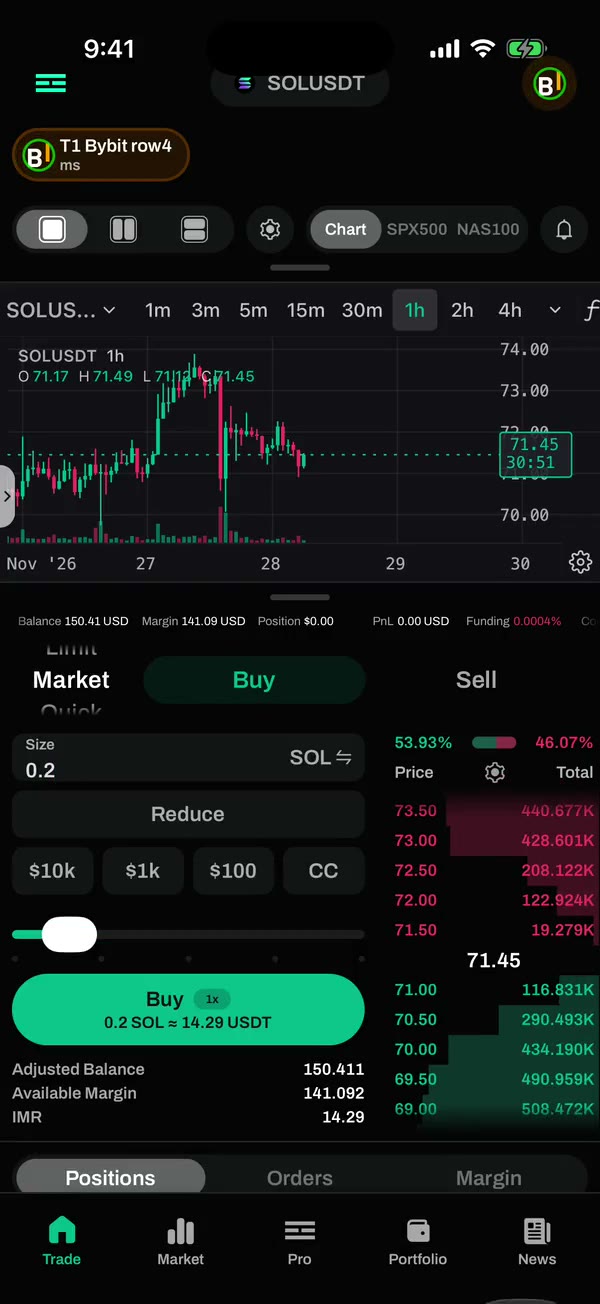
Enter a size and tap Buy or Sell
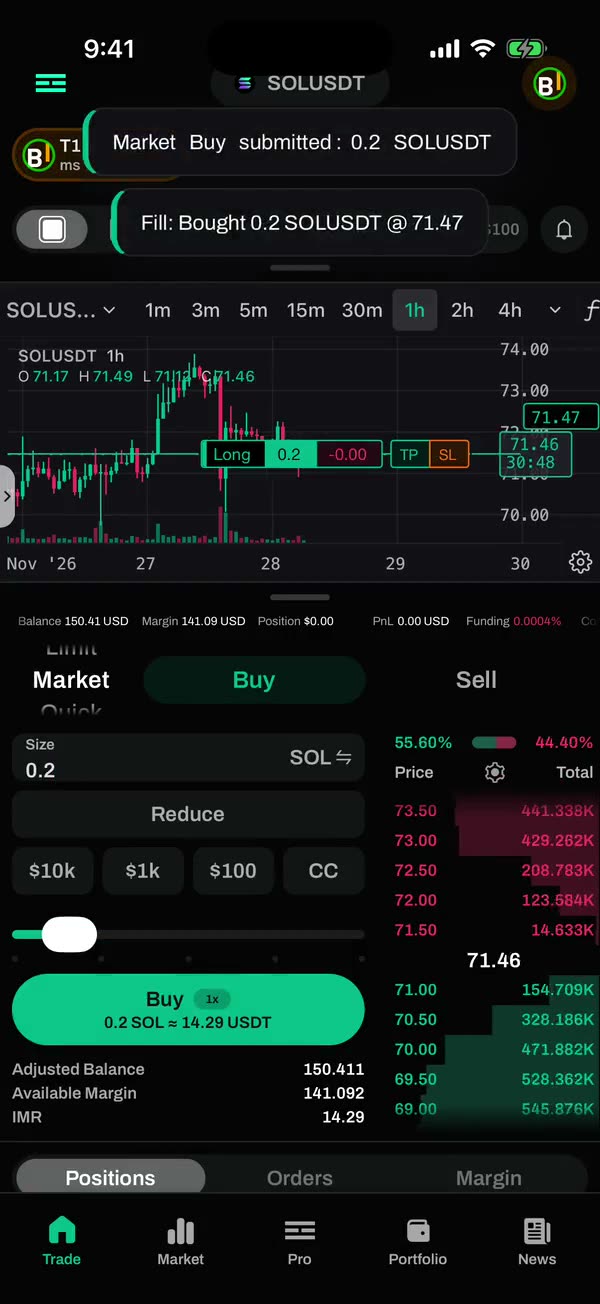
Tap the Buy or Sell pill, enter a Size (1), and tap the order button (2). It shows the side, leverage, size and value before you tap. A notice confirms the fill, and the position appears under Positions.
Place a limit order
- Choose Limit.
- Tap the Buy or Sell pill.
- Enter a Price. Or turn on BBO to have the price follow the best bid (for a buy) or best ask (for a sell).
- Enter a Size.
- Optional:
- Post: post-only. The order is only accepted if it rests on the book, so it never fills as a taker.
- Reduce: reduce-only. The order can only shrink your position, never open or flip it.
- Tap the order button.
The order appears in the Orders tab until it fills.
Quick
Quick swaps the Buy/Sell pills for an Offer / Take switch, and shows rows of Buy and Sell buttons at set tick distances from the price. Each tap sends one order straight away.
- Offer prices from your side of the book, so the order rests and waits to be filled.
- Take prices across the spread, so the order fills straight away.
Take profit and stop loss
- Stop loss: choose TP/SL, pick the side that closes your position (a Sell stop protects a long, a
Buy stop protects a short), set the trigger price, and tap the order button (labelled Stop).
TP/SL orders are always reduce-only: Reduce is locked on. The Full Stop switch decides how much closes:
- Full Stop on: the whole position closes when the stop triggers.
- Full Stop off: only the Size you enter closes.
- Take profit: place a Limit order on the other side of your position with Reduce turned on. For a long, that's a sell limit above your entry. Reduce-only makes sure it can only close the position.
From the chart
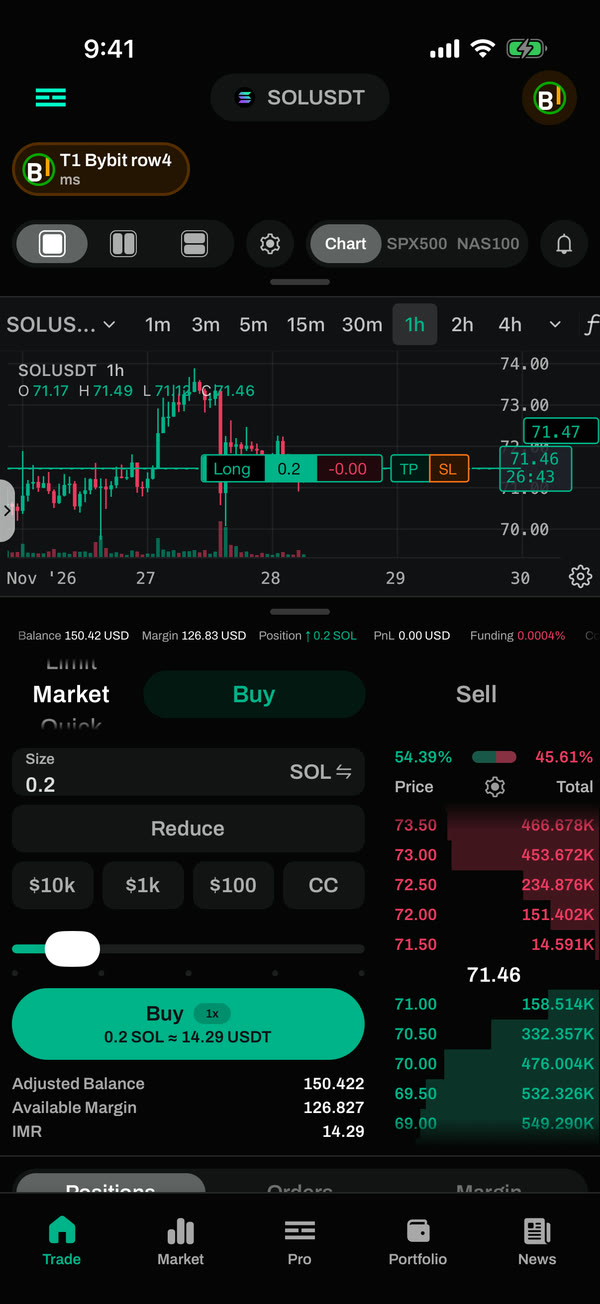 1
Grab TP or SL on your position line
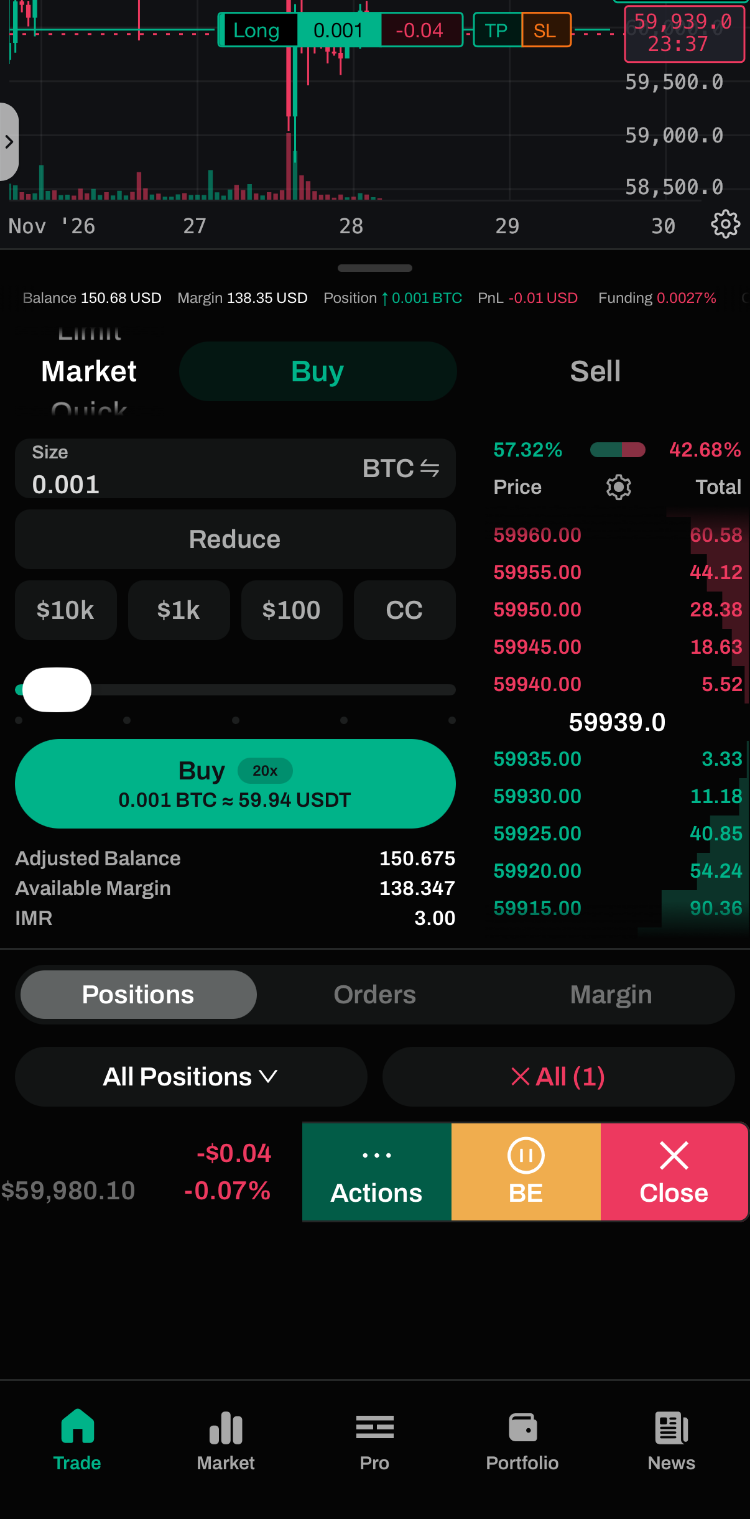
While you hold a position, its line on the chart has TP and SL handles (1). Drag one up or down.
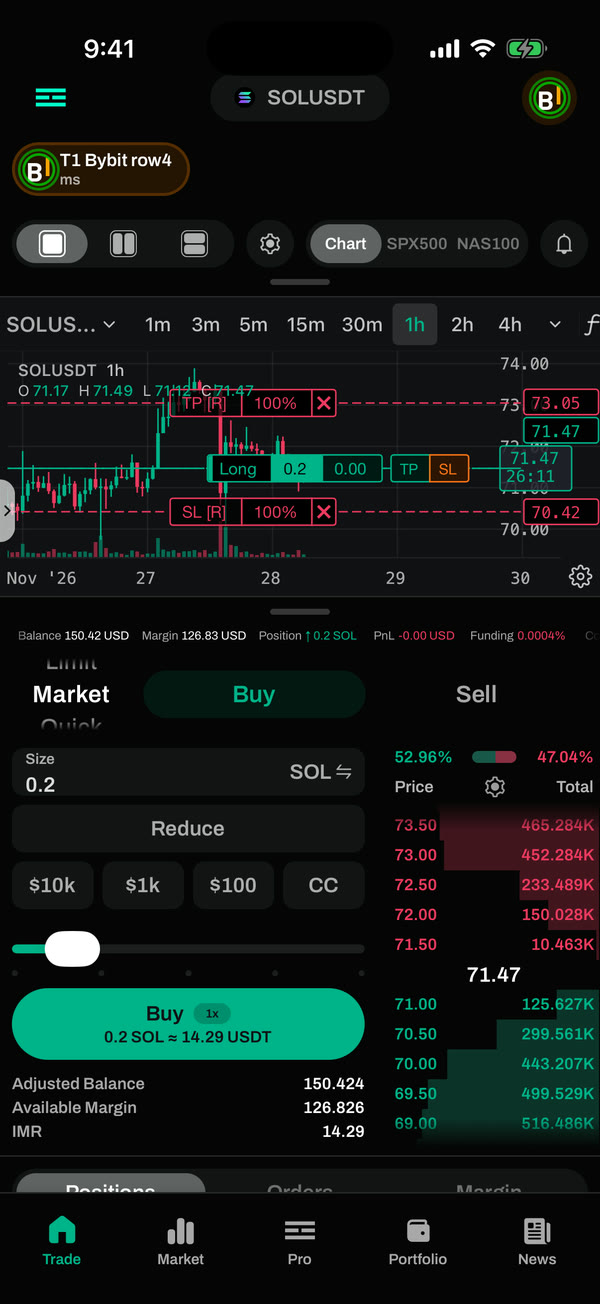 2
Let go at your price
Release to place the order: the take profit (1) and stop loss (2) show on the chart and under Orders. Tap ✕ on a line to cancel it.
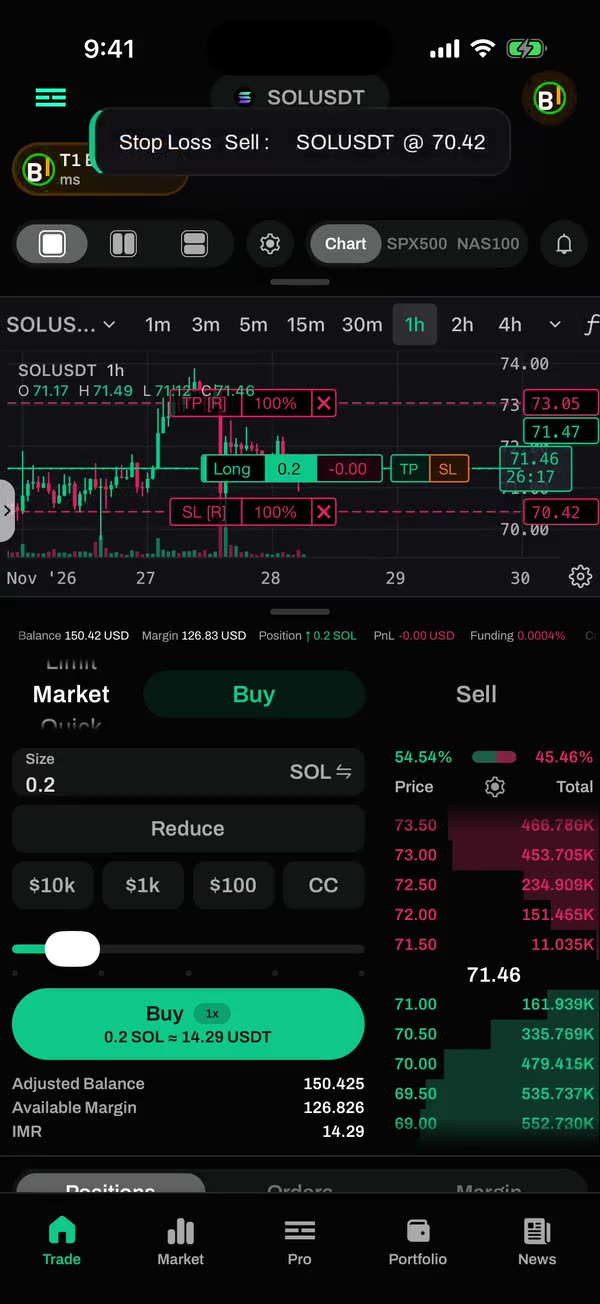
Your stops and take-profit orders are listed in the Orders tab. Use its filter to show Stops.
Watch your positions
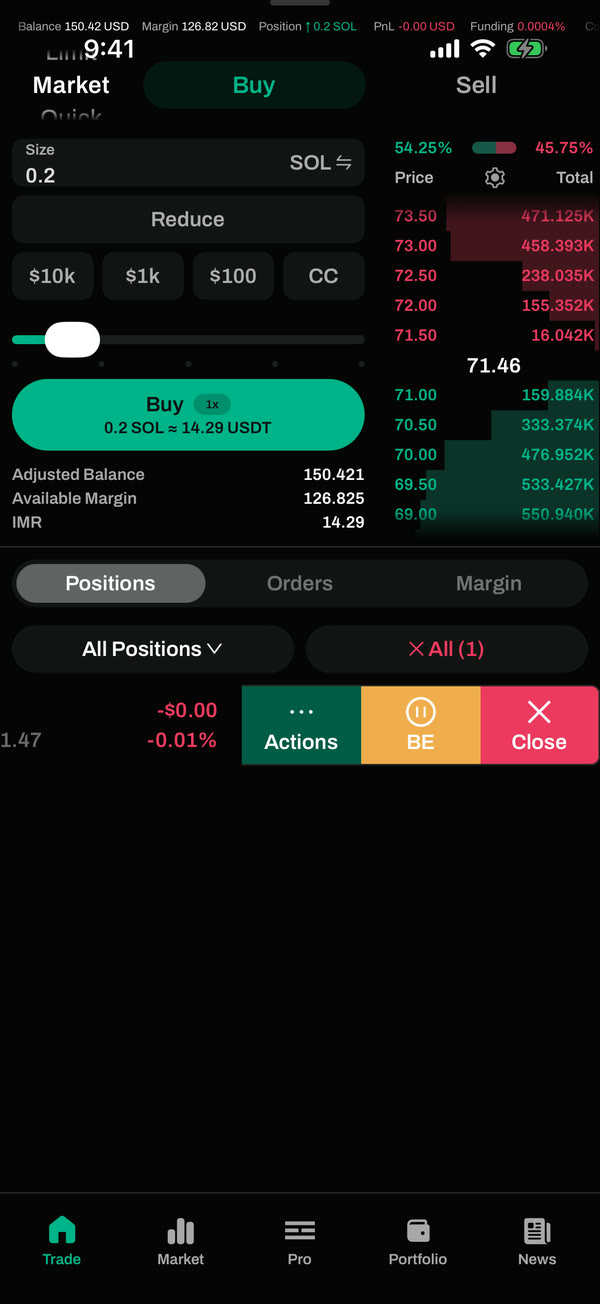
The Positions tab lists your open positions. Swipe a position row to the left to show its buttons. (Tapping the row opens its details instead.)
- Close: closes the whole position at market straight away (a reduce-only market order).
- BE: places a breakeven stop loss at your entry price for the whole position.
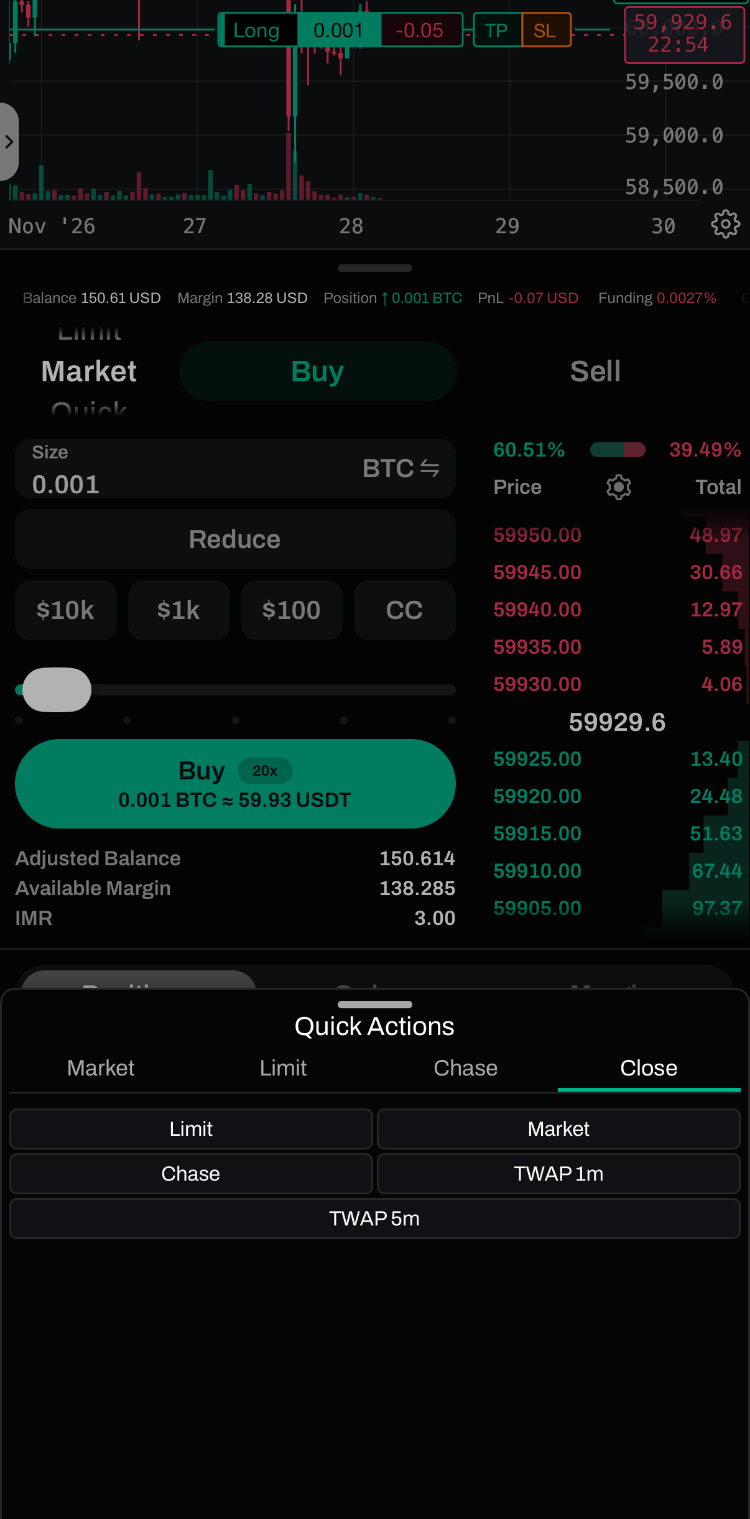
- Actions: opens Quick Actions:
- Market and Limit tabs, plus Chase where available: buttons to add to or reduce the position by a percentage, and Reverse to flip it.
- Close tab: close using Limit or Market (or Chase), or spread over time with TWAP 1m / TWAP 5m.
Chase only appears when chasers are turned on in settings (they are by default) and your exchange supports them.
✕ All (N) at the top of the tab closes every open position at market, with no confirmation.
Close a position
 1
Swipe the position left
On Positions, swipe the row left and tap Close (1). It closes the whole position at market, with no confirmation.
 2
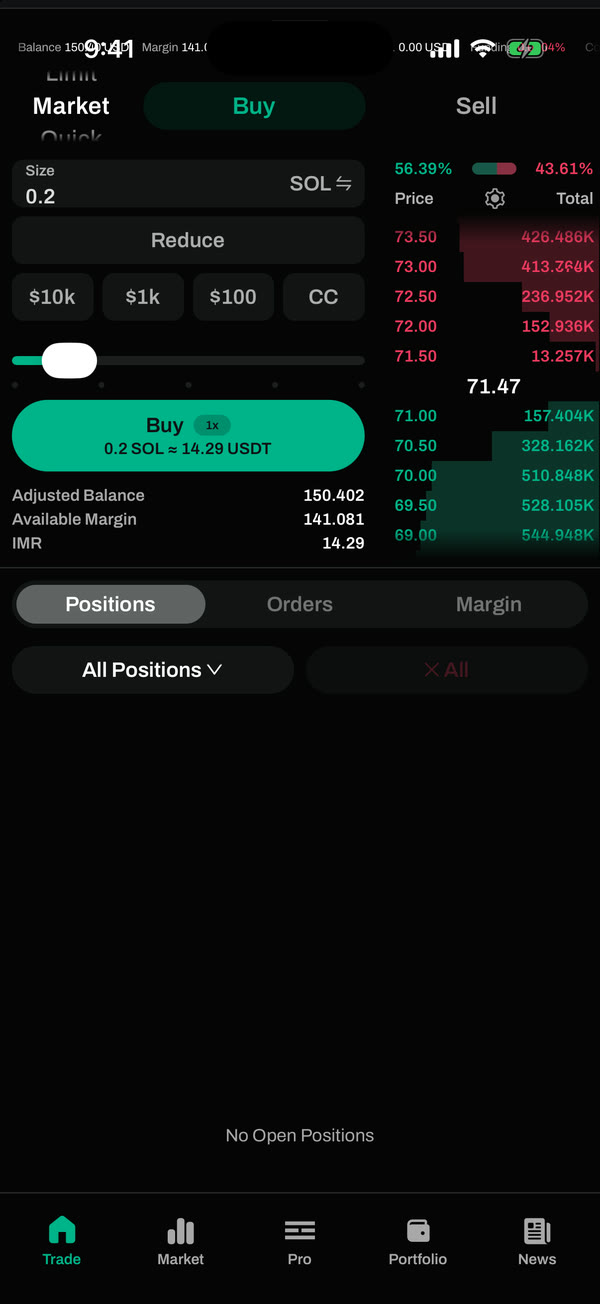
Done
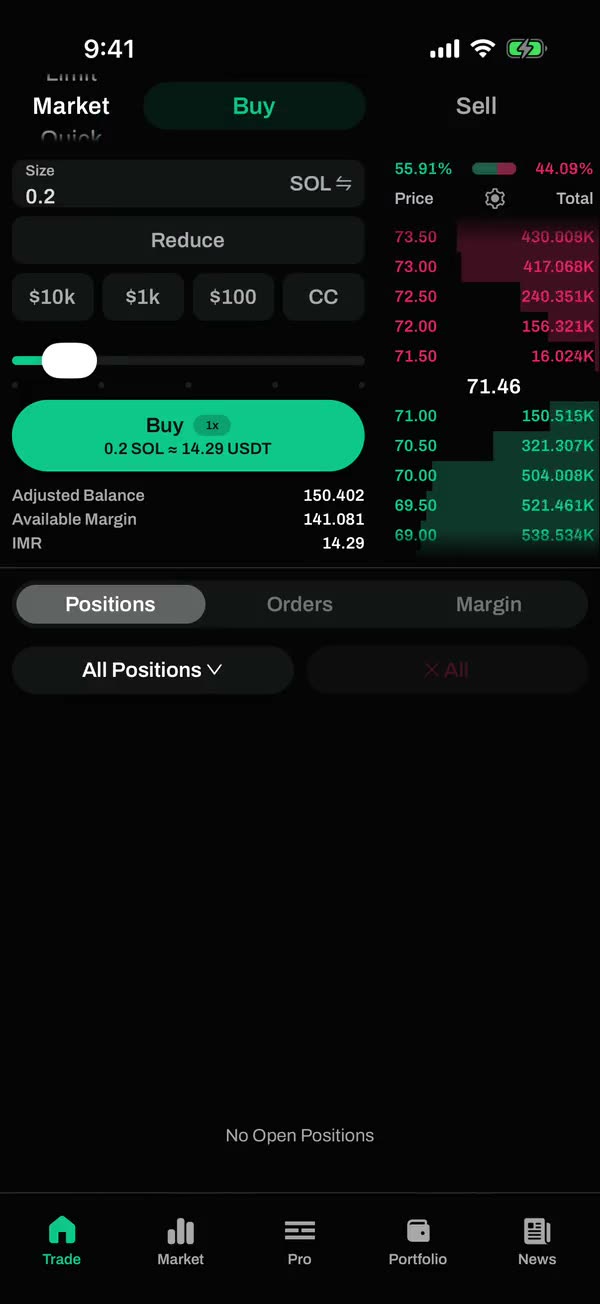
The fill notice appears and the position is gone (1). Any stops attached to it are cancelled with it.
Manage open orders
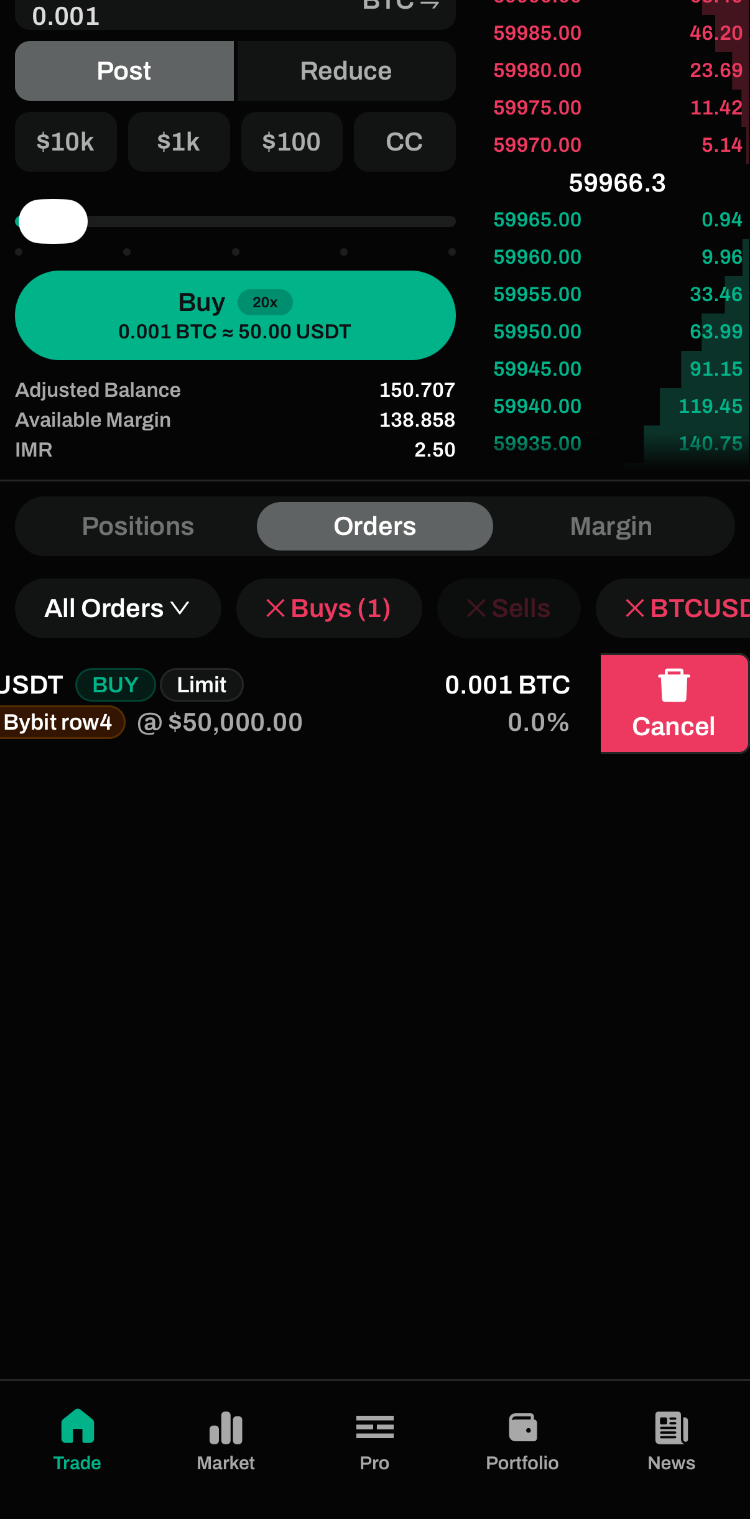
The Orders tab lists resting orders and stops. Its filter at the top chooses which orders you see (for example all orders, limit/market only, or stops).
- Cancel one order: swipe the row left and tap Cancel. Or tap the row to open its details, where you can Cancel or Edit it.
- Cancel several: use the buttons at the top: ✕ Buys, ✕ Sells, ✕ Symbol or ✕ All. These only cancel orders that match the current filter. If the filter is on Stops, ✕ All cancels only your stops.
- Cancel from the order book: tap (or long-press) a price level where you have orders. Tealstreet asks Cancel Orders at that price before cancelling.
Charts
- The chart is at the top of the Trade tab. Use the chart's top bar to change the timeframe and add indicators.
- Tap + on the chart at a price to open a small order card at that price. Its type menu offers LIMIT, MARKET and SL (stop loss). The bell on the card sets a price alert at that price instead.
- For a bigger chart with its own order drawer, open the Market tab and tap any market.
- The bell in the account bar opens Price alerts. If you can't see it, tap the circle at the top-right to open the account bar.