TradingView Settings
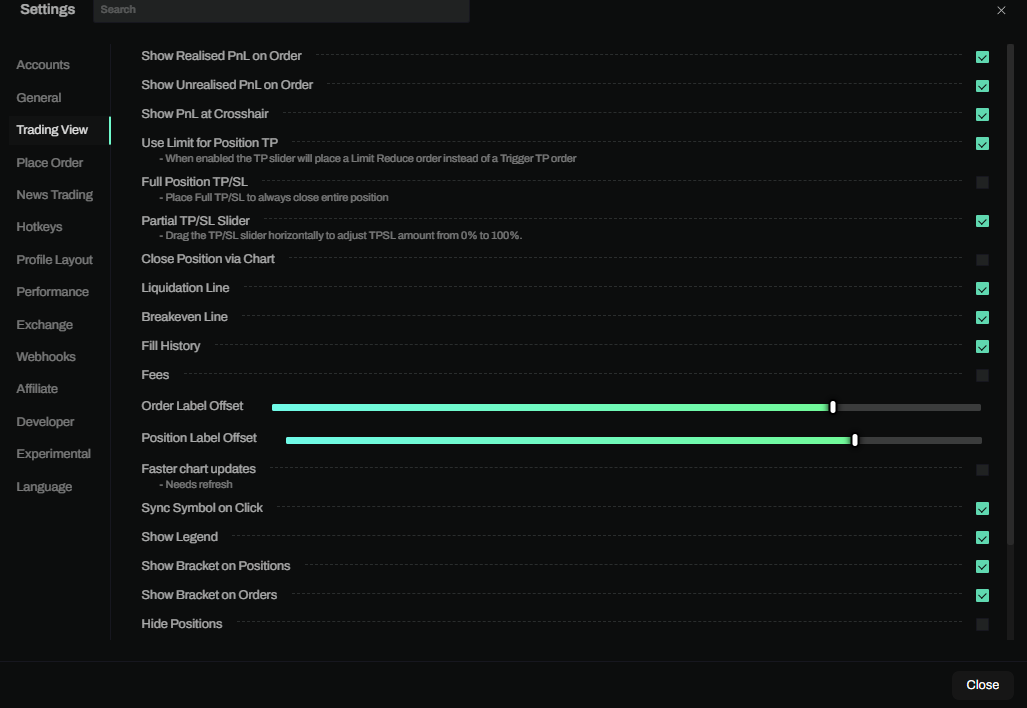
The TradingView settings allow you to customize how the chart displays information, how orders and positions appear, and various performance options. To access these settings, click the gear icon in the top-left corner of the terminal and navigate to the Trading View tab.
PnL Display Settings
These settings control how profit and loss information is displayed on your chart.
Show Realised PnL on Order
When enabled, displays the realized profit/loss on your orders directly on the chart. This helps you see how much you've already locked in from partial closes or previous trades.
Show Unrealised PnL on Order
When enabled, displays the unrealized (floating) profit/loss on your open positions directly on the chart. This gives you a quick visual reference of your current position's performance.
Show PnL at Crosshair
When enabled, shows the potential PnL at the crosshair position as you move your cursor across the chart. This is useful for visualizing potential profit or loss at different price levels before placing orders.
Take Profit & Stop Loss Settings
These settings control the behavior of TP/SL orders placed via the chart.
Use Limit for Position TP
When enabled, the TP slider on the chart will place a Limit Reduce order instead of a Trigger TP order. This can help you get better fills by using maker orders instead of market orders when your take profit is hit.
Using limit orders for take profits can reduce slippage and fees, but there's a risk the order may not fill if price moves quickly past your target.
Full Position TP/SL
When enabled, TP/SL orders placed via the chart will always close your entire position regardless of the slider position. This is useful if you always want your stops and take profits to fully exit your position.
Partial TP/SL Slider
When enabled, allows you to drag the TP/SL slider horizontally to adjust the TPSL amount from 0% to 100%. This gives you fine-grained control over how much of your position to close at each level.
Not all exchanges support partial TP/SL. Check your exchange's documentation for compatibility.
Chart Display Settings
These settings control what visual elements appear on your chart.
Close Position via Chart
When enabled, allows you to close positions directly from the chart interface using the position line's close button.
Liquidation Line
When enabled, displays your liquidation price as a line on the chart. This is critical for risk management, showing you exactly where your position would be forcefully closed.
Breakeven Line
When enabled, displays your breakeven price as a line on the chart. This shows the price at which your position would break even after accounting for entry price and fees.
Fill History
When enabled, displays your historical fills (executed orders) on the chart. This helps you visualize where your orders were filled and track your trading history visually.
Fees
When enabled, displays fee information on the chart. This setting is only available for exchanges that support fee rate data.
Show Legend
When enabled, displays the chart legend showing indicator values and other information. Disable this for a cleaner chart view.
Label Positioning
These sliders control where order and position labels appear on the chart.
Order Label Offset
Adjusts the horizontal position of order labels on the chart. Move the slider to position labels further left or right to avoid overlapping with price action or other elements.
Position Label Offset
Adjusts the horizontal position of position labels on the chart. Similar to order label offset, this helps you position your position information where it's most visible and least obstructive.
Performance Settings
Faster Chart Updates
When enabled, the chart will update more frequently for a smoother, more responsive experience. This is particularly useful for scalping or when monitoring fast-moving markets.
After enabling or disabling this setting, you need to refresh your browser for the changes to take effect. This setting may increase CPU usage on slower devices.
Multi-Chart & Syncing
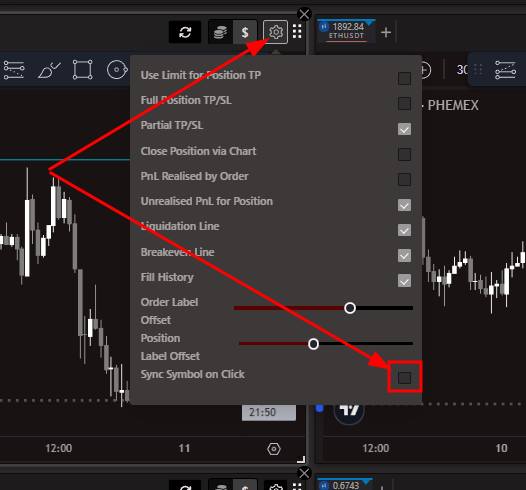
Sync Symbol on Click
When enabled, clicking on a chart will sync the Place Order module to focus on that chart's symbol and account. This is essential when working with multiple charts to ensure your orders go to the correct market.
See Chart Trading - Multiple Chart Trading for more details on working with multiple charts.
Bracket Order Settings
These settings control the display of bracket orders (TP/SL) on the chart.
Show Bracket on Positions
When enabled, displays the TP/SL bracket controls on your open positions. This allows you to quickly add or modify take profit and stop loss orders directly from the position line on the chart.
Show Bracket on Orders
When enabled, displays the TP/SL bracket controls on your resting orders (orders that haven't been filled yet). This allows you to set up bracket orders before your entry is triggered.
Brackets are available when Bracket Orders (RR tool) is enabled in the place order settings (TP/SL preview and risk tools). TP defaults to market unless you enable “Replace TP w/ Limit When Entry Filled.” Partial TP/SL depends on exchange support.
Visibility Settings
Hide Positions
When enabled, hides all position lines from the chart. Useful if you want a cleaner chart view without position information cluttering the display.
Hide Orders
When enabled, hides all order lines from the chart. Useful for a cleaner chart view without order information.
If you're having trouble seeing price action due to too many orders or positions on the chart, try temporarily hiding them using these settings.
Toolbar Settings
Favorite Toolbar Layout
Controls the layout of the TradingView favorites toolbar. Options include:
| Option | Description |
|---|---|
| Auto | Automatically determines the best layout based on available space |
| Vertical | Forces the toolbar to display vertically on the side of the chart |
| Horizontal | Forces the toolbar to display horizontally at the top of the chart |
Recommended Settings for Different Trading Styles
Scalping
For fast-paced scalping, consider these settings:
- ✅ Enable Faster chart updates
- ✅ Enable Sync Symbol on Click
- ✅ Enable Show Unrealised PnL on Order
- ✅ Enable Liquidation Line
- ❌ Disable Fill History (to reduce visual clutter)
Swing Trading
For swing trading with multiple positions:
- ✅ Enable Show Bracket on Positions
- ✅ Enable Breakeven Line
- ✅ Enable Full Position TP/SL
- ✅ Enable Show Legend
- ✅ Enable Fill History
Multi-Account Trading
When trading across multiple accounts:
- ✅ Enable Sync Symbol on Click
- ✅ Enable Show Bracket on Positions
- ✅ Enable Show Bracket on Orders
- Adjust Position Label Offset to avoid overlapping labels
Troubleshooting
Chart drawings not saving
If your chart drawings aren't saving correctly, make sure to save your layout with a name. See Chart Trading - Troubleshooting for more details.
Settings not applying
Some settings like Faster chart updates require a browser refresh to take effect. Try refreshing your page after changing these settings.
TP/SL not appearing on chart
Ensure that Show Bracket on Positions is enabled in your TradingView settings. Also verify that the exchange you're using supports the TP/SL features you're trying to use.