Crypto.com
Connecting Crypto.com to Tealstreet
API Creation Process
- First, make sure you are logged into your Crypto.com Exchange account.
- Make sure two-factor authentication is enabled before creating an API key.
Consider supporting Tealstreet by using the referral link.
- Log into your Tealstreet account.
It's a good idea to keep both Tealstreet and Crypto.com tabs open for the duration of this process.
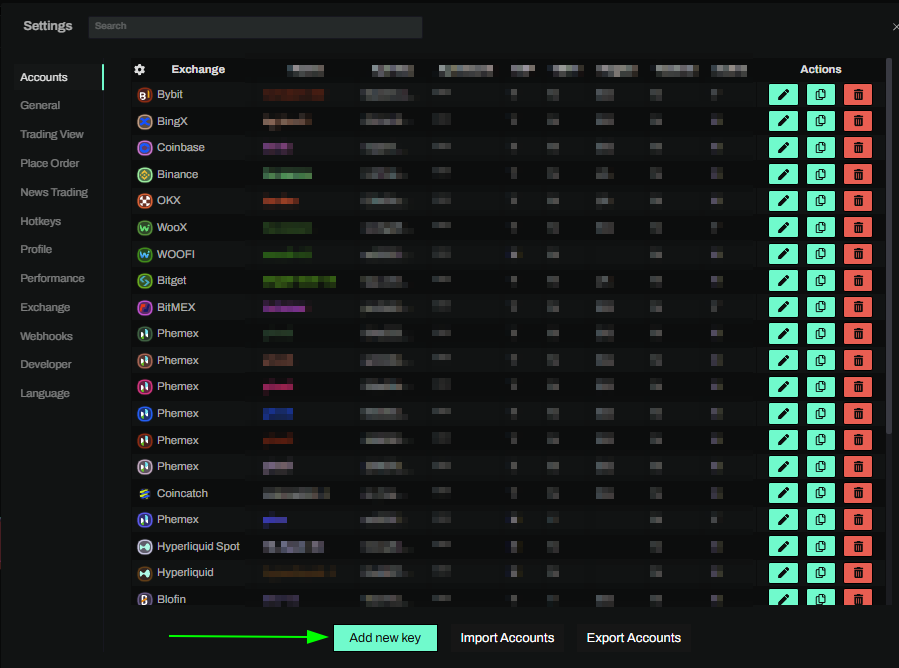
- Click the 'Settings' button near the top right corner of the terminal.

- Click the 'Add new key' button at the bottom of the settings page.
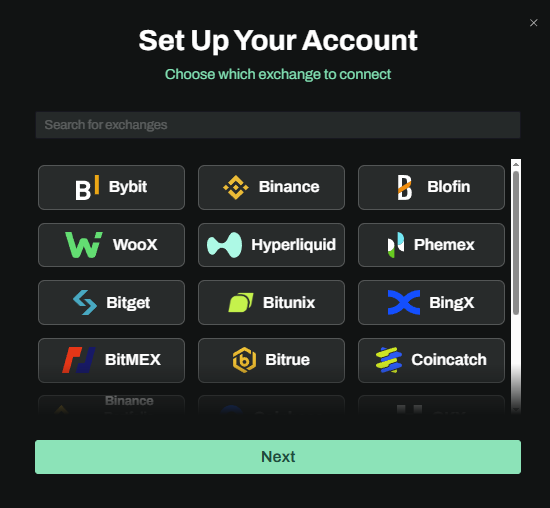
- Choose Crypto.com from the exchange selection menu.
Okay lets go back to our Crypto.com account and create the API Key.
Crypto.com API Creation
- Now you are ready to generate the API keys within your Crypto.com Exchange account. Head on over to Crypto.com Exchange and:
- Click the User Center or profile menu.
- Select API or API Keys from the account settings area.
Crypto.com describes API key generation in their official Exchange API docs under User Center > API.
- On the API page, click Create a new API key to start the key creation process.
- Enter a recognizable label for the API key, such as Tealstreet.
- Complete the required 2FA verification.
Copy and store the Secret Key immediately. Crypto.com only shows the secret when the API key is created.
- Now configure the settings for your Crypto.com API key.
- Can Read: Enable this permission so Tealstreet can load balances, positions, orders, and account state.
- Enable Trading: Enable this permission so Tealstreet can place and manage orders.
- IP Whitelist: Copy the whitelist IP addresses supplied by Tealstreet on the new API key page and paste them into the Crypto.com IP whitelist field.
- Withdraw / Transfer: Leave withdrawal or transfer permissions disabled.
Never share your API keys with anyone. Tealstreet does not need withdrawal permissions.
Linking the API to Tealstreet
- Once you have created the API key on Crypto.com's website, you are ready to link it inside Tealstreet.
- Return to the API Keys page inside the Tealstreet terminal.
- Click the exchange dropdown and select Crypto.com.
- Name: Choose a name for your API key. This is helpful if you use multiple exchanges or sub-accounts.
- Choose the color you want your key to use inside the terminal.
- Paste the API Key provided by Crypto.com.
- Paste the API Secret provided by Crypto.com.
- Click Done.
Never share your API Keys with anyone. Tealstreet team members will never ask you what your API key is.
Be sure to double check you do not confuse API Key and API Secret. Connecting your Crypto.com exchange account to Tealstreet will not work if these fields are not entered correctly.
If all the details are correct, you will have successfully linked your Crypto.com account to Tealstreet.
- Close the Settings page and navigate to the Main Trading page. Select the Crypto.com account you just linked to enable it.
- If properly linked, you will see your balance appear in the Margin window of Tealstreet. Happy trading!!!
- For more information check out our Quick Start Guide.
Supported Markets
Crypto.com support in Tealstreet is planned for Crypto.com Exchange markets.
Troubleshooting
API key rejected
- Double check that you did not confuse the API Key and the API Secret.
- Confirm the API key is active in Crypto.com Exchange.
- Confirm Can Read and Enable Trading permissions are enabled.
- If IP whitelisting is enabled, ensure every IP address listed in Tealstreet was added to the Crypto.com API key.
Zero balance
Tealstreet Margin Wallet not showing any balance?
- Confirm the funds are held on Crypto.com Exchange, not only in the Crypto.com App.
- Confirm the API key has Can Read permission enabled.
- Confirm you have the appropriate Crypto.com market open in Tealstreet.
Can't place orders
- Confirm Enable Trading is enabled on the Crypto.com API key.
- Keep withdrawal and transfer permissions disabled.
- Confirm your Crypto.com account is allowed to trade the selected market in your region.
- If you have issues, please contact us.