Feature Tour
The app has three areas you'll use all the time:
- the tab bar along the bottom;
- the top bar, which holds the side-panel button, the market selector and your account, with the account bar under it;
- the side panel, behind the Tealstreet logo at the top-left.
The top bar
| Where | What it does |
|---|---|
| Top-left | The Tealstreet logo opens the side panel. |
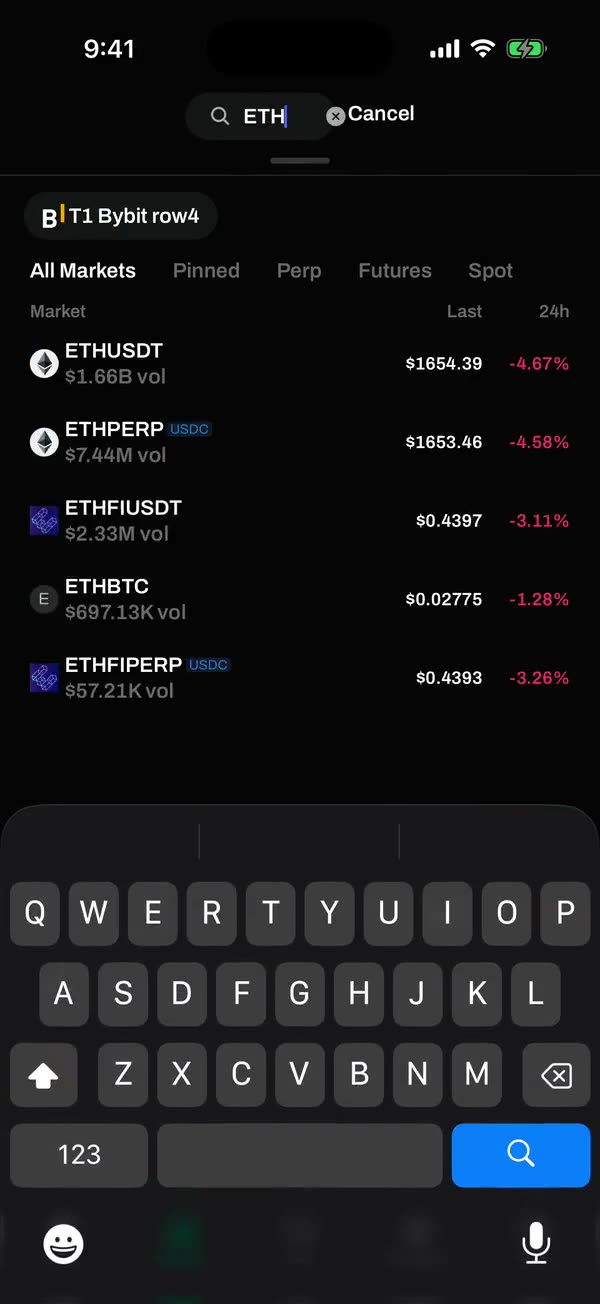
| Middle | The current symbol. Tap it to search for and switch markets. On the Market tab this is a search field. |
| Top-right | Your active exchange account, shown as its logo in a circle (an empty circle until you add an account). Tap it to open or close the account bar. If you're signed out, this is the sign-in icon. |
The account bar under the top bar is open when the app starts. It has a pill for each account (tap one to switch). On the Trade tab it also holds the chart selector and the bell for price alerts. While you have no accounts it shows an Add an API key pill.
The tab bar
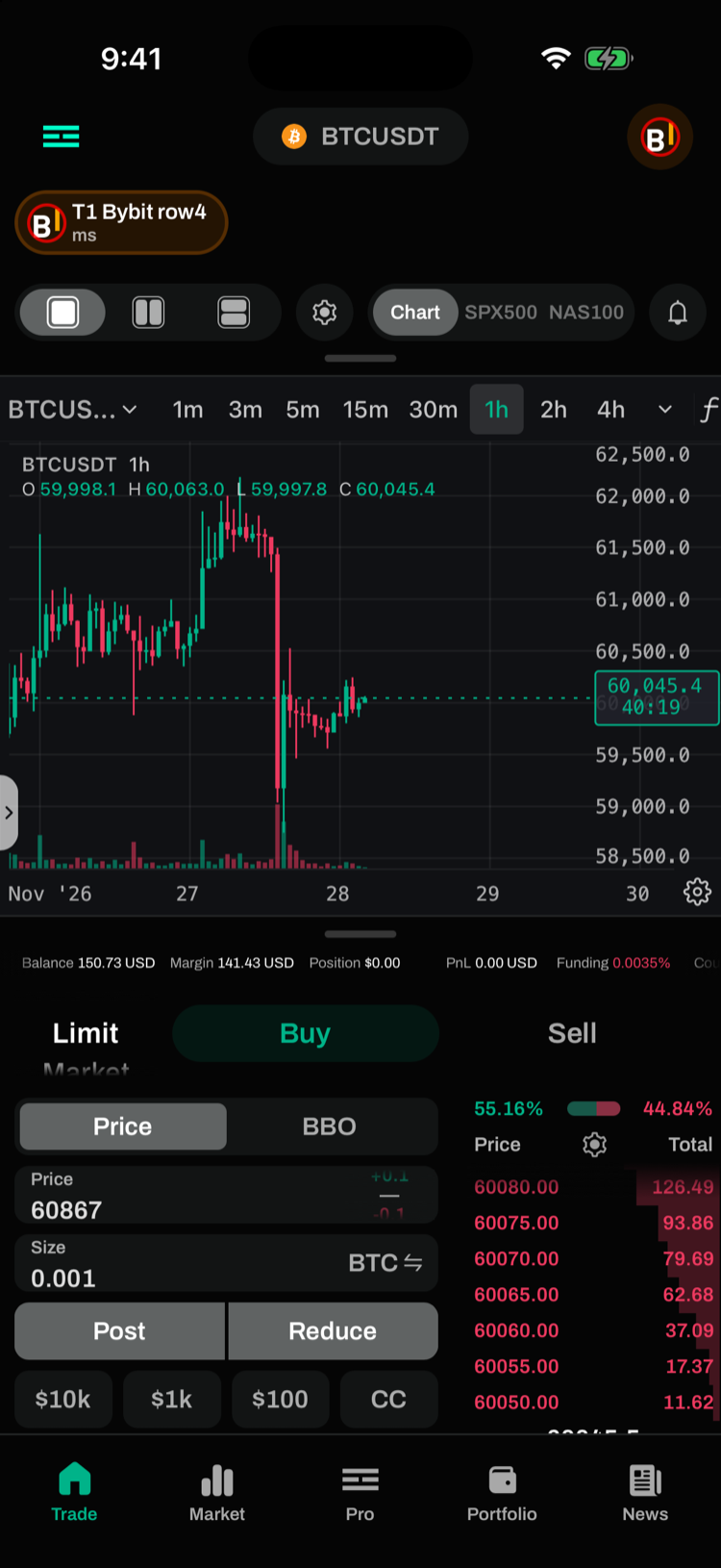
Trade
Where you place and manage trades. From top to bottom: the chart, a margin strip, the order type selector, the order form with the order book beside it, and the Positions, Orders and Margin tabs. The Margin tab is where you set leverage. See Placing your first trade.
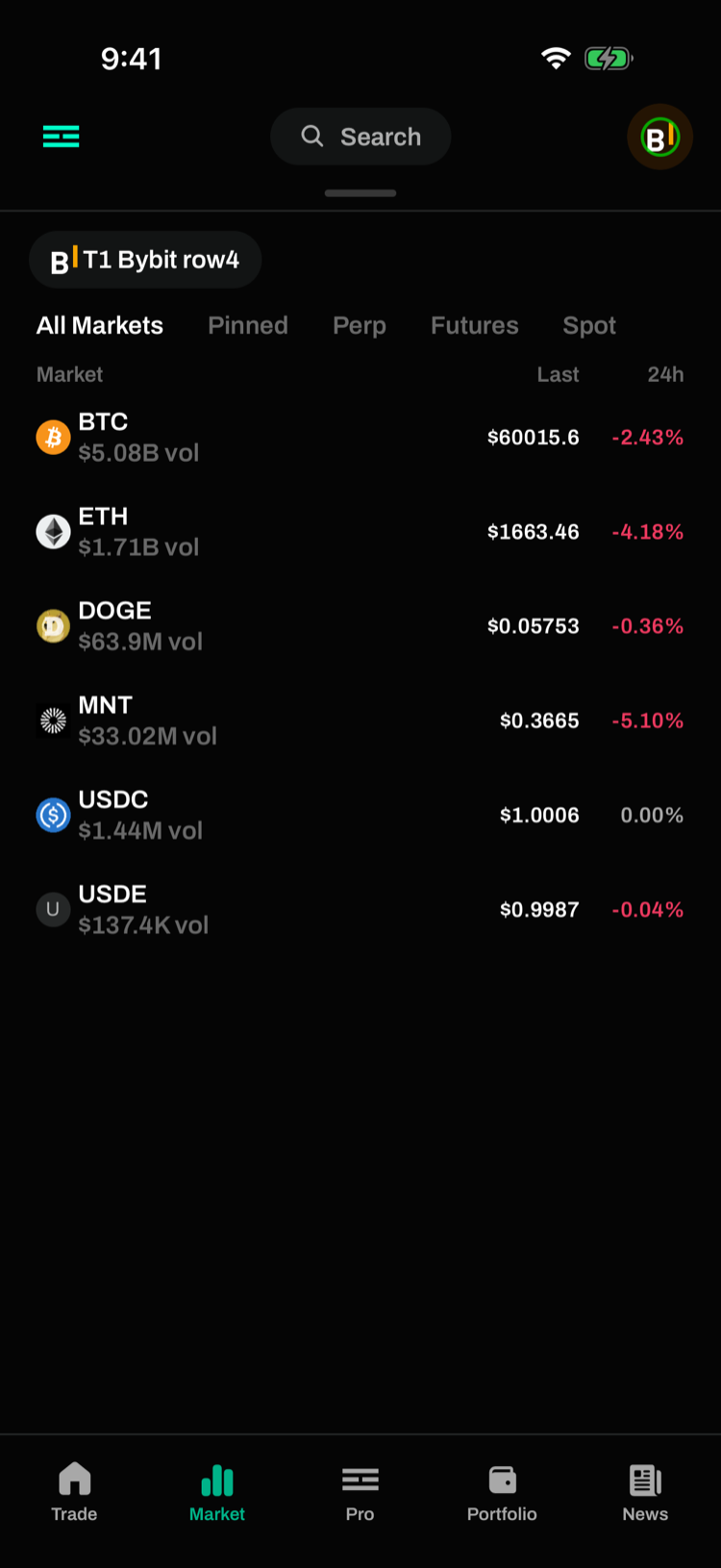
Market
A list of markets for the active exchange, with filters for All Markets, Pinned, Perp, Futures and Spot. Tap a market to open its chart screen, with a stats header and an order drawer for trading from there. The top bar and account bar stay in place.
Pro
Being rebuilt. It currently shows Coming soon. Use the Trade tab in the meantime.
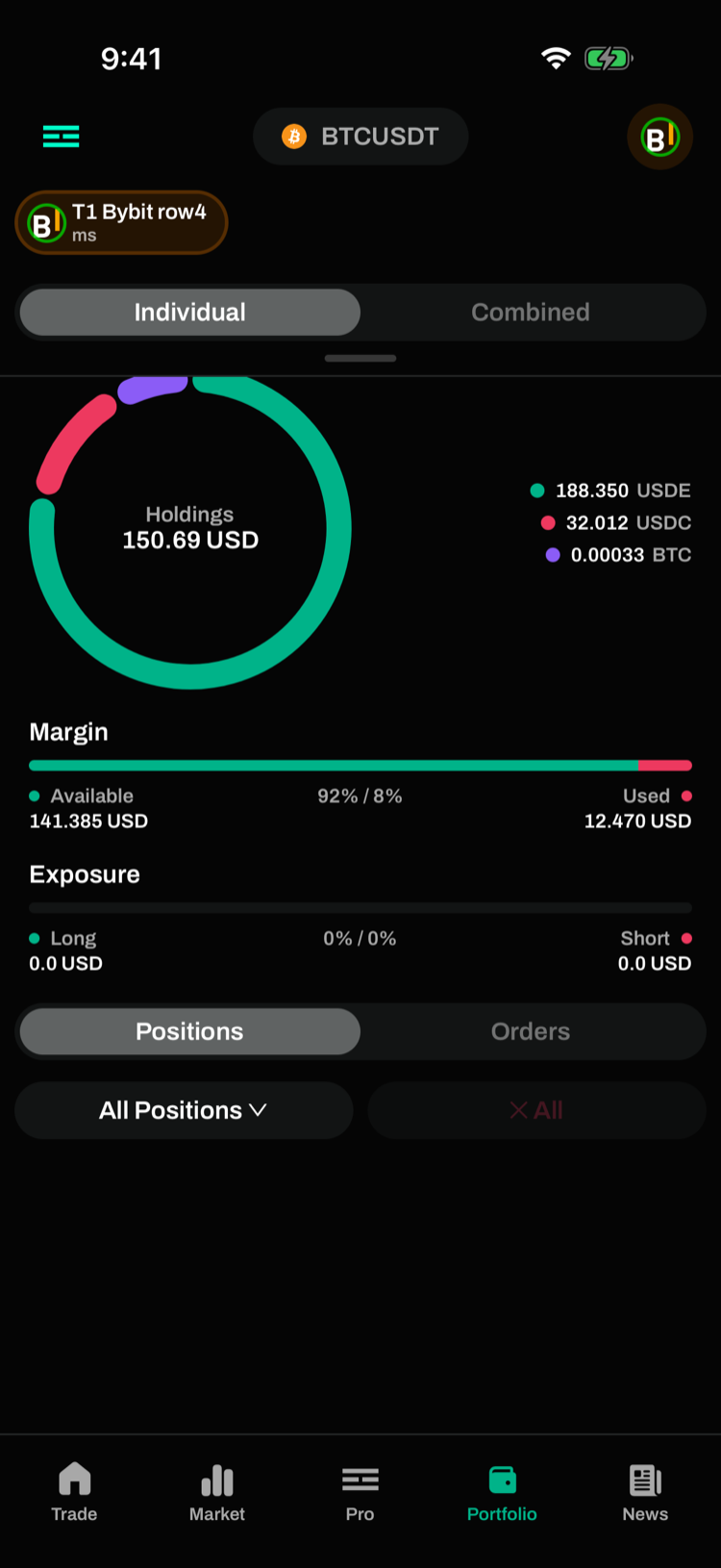
Portfolio
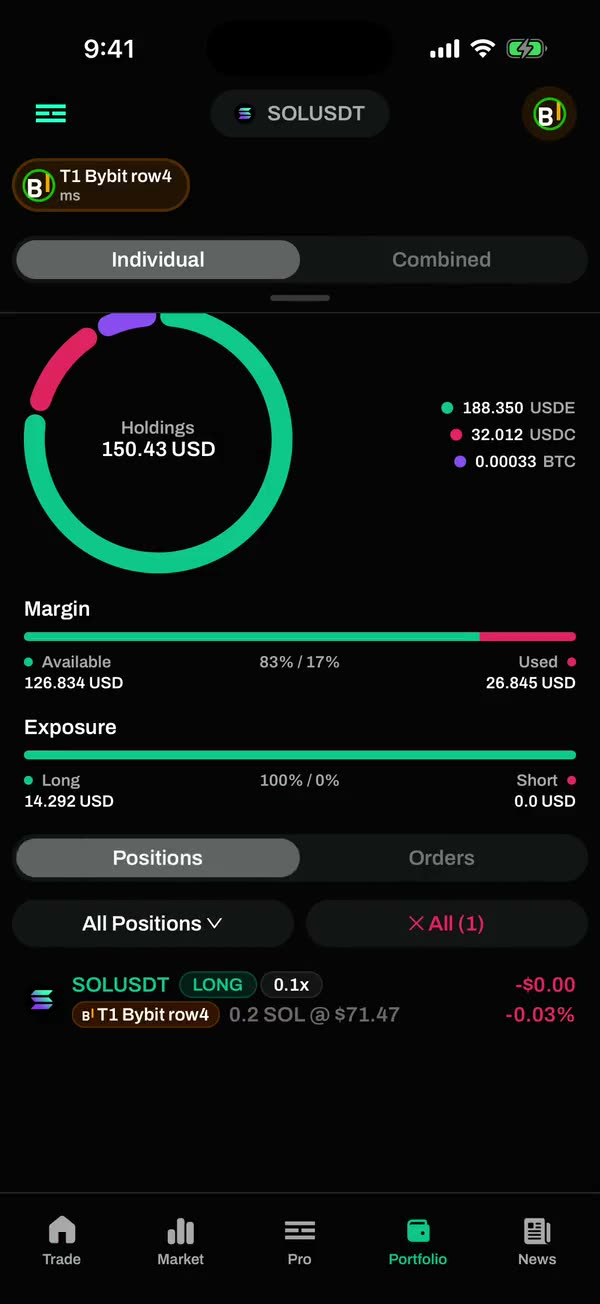
An overview of your account: Adjusted Balance, Holdings, Margin (Available and Used), Exposure (Long and Short), and your Positions and Orders across symbols.
News
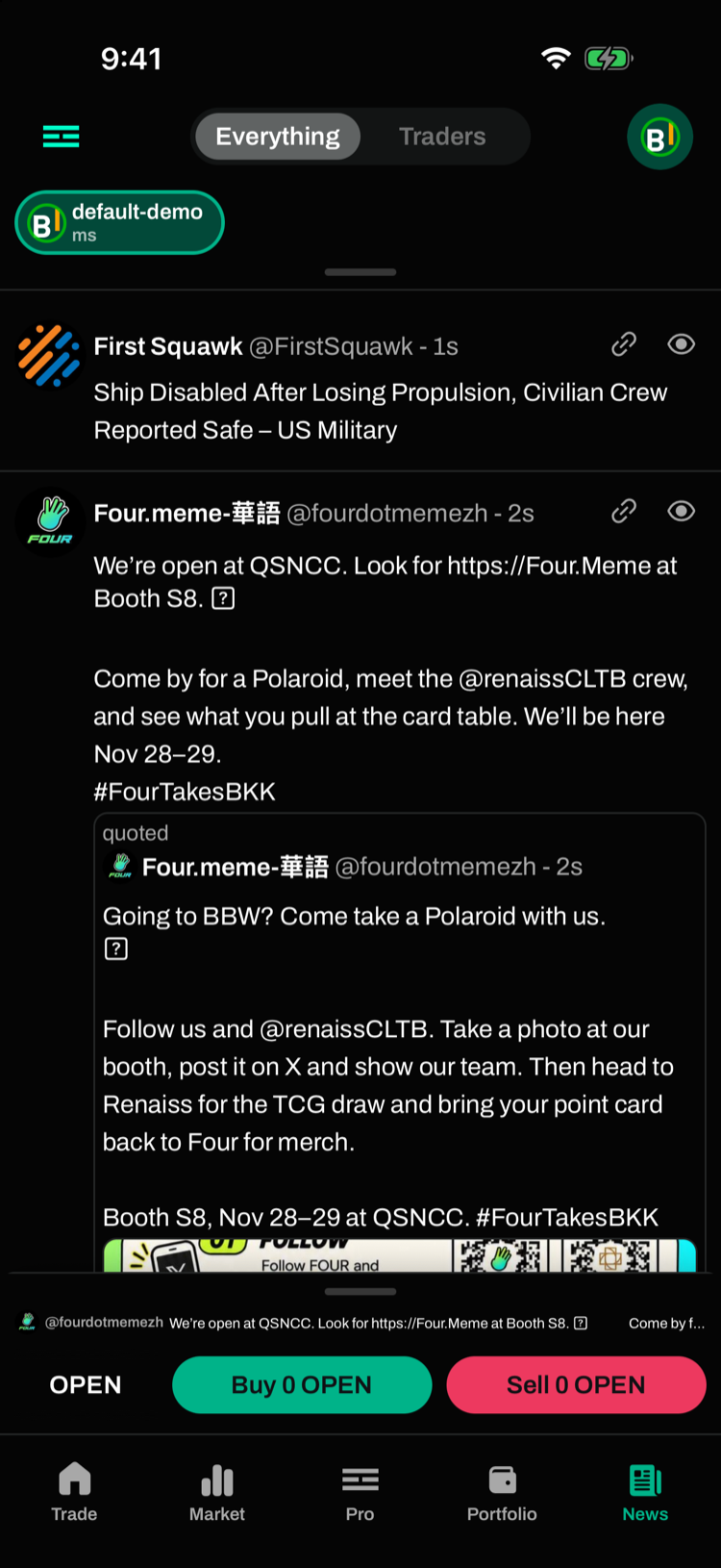
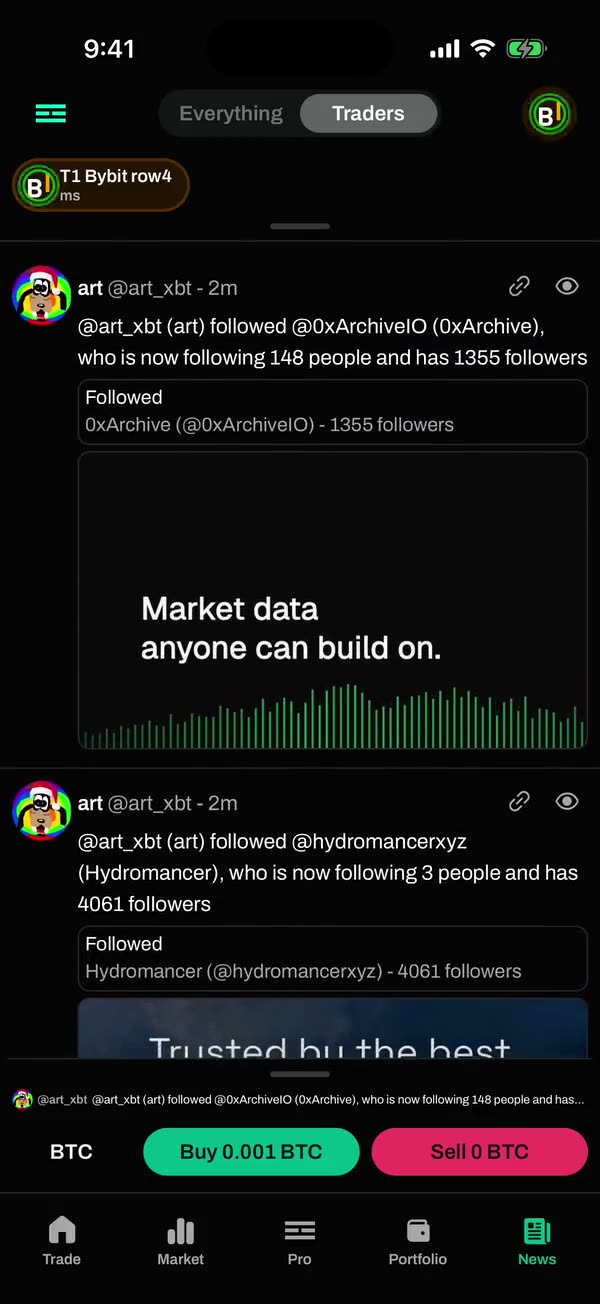
Tealstreet's live news feed, with Everything and Traders tabs (plus Custom if you've set up your own list). Feed and filter options are under Settings → News Trading.
The side panel
Tap the Tealstreet logo at the top-left. Your name or email is at the top, and the app version is at the bottom.
| Item | What it's for |
|---|---|
| Settings | All app settings (below). |
| API keys | Straight to Settings → Accounts: add, edit or remove exchange accounts. |
| Price alerts | Your price alerts. The number in brackets is how many are active. |
| Order history | Past orders. |
| Cloud jobs | Accounts, chasers and TWAPs running on Tealstreet's servers (below). The number in brackets is how many jobs are running. |
| Check for Updates | Look for an in-app update now. See App updates. |
| Log Out | Sign out of Tealstreet on this phone. |
Price alerts
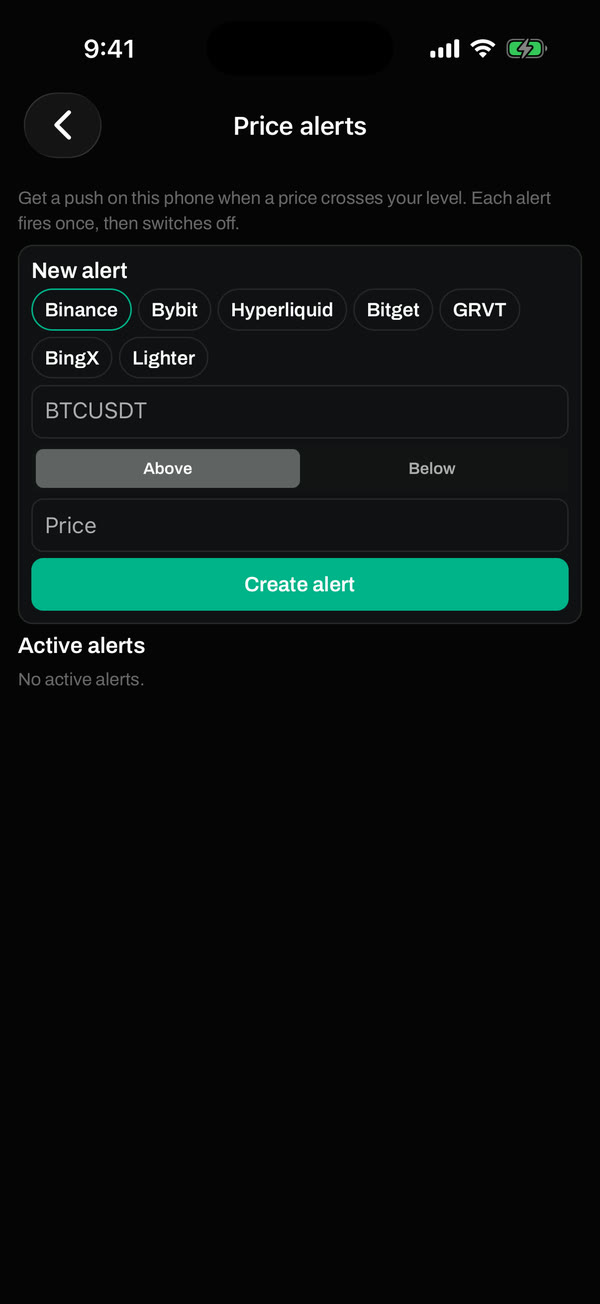
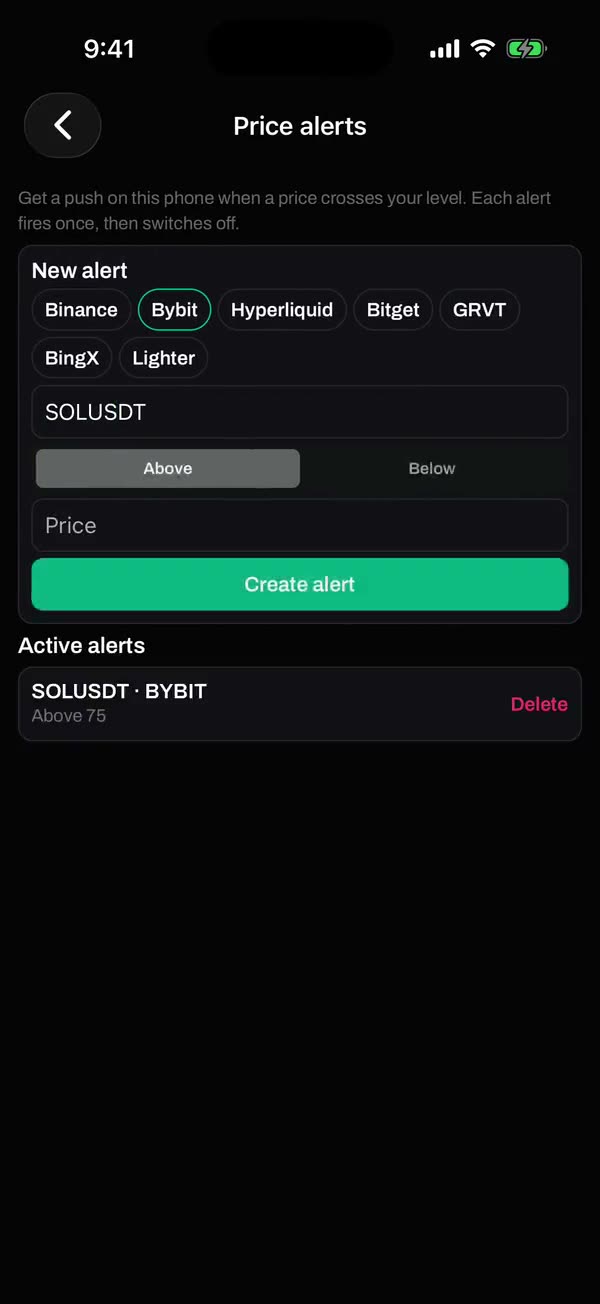
Get a push notification on your phone when a price crosses your level. Each alert fires once, then switches off.
 1
Fill in the alert
Open Price alerts from the side panel or the bell in the account bar. Pick the exchange (1), type the symbol (2), choose Above or Below and enter the price (3).
- 2
Create it
Tap Create alert (1). It appears under Active alerts and fires once, as a push to this phone.
You can also tap + on the chart at a price, then the bell on the card, to start an alert at that price. Allow notifications for Tealstreet when your phone asks. Without notification permission, alerts can't reach you.
Cloud jobs
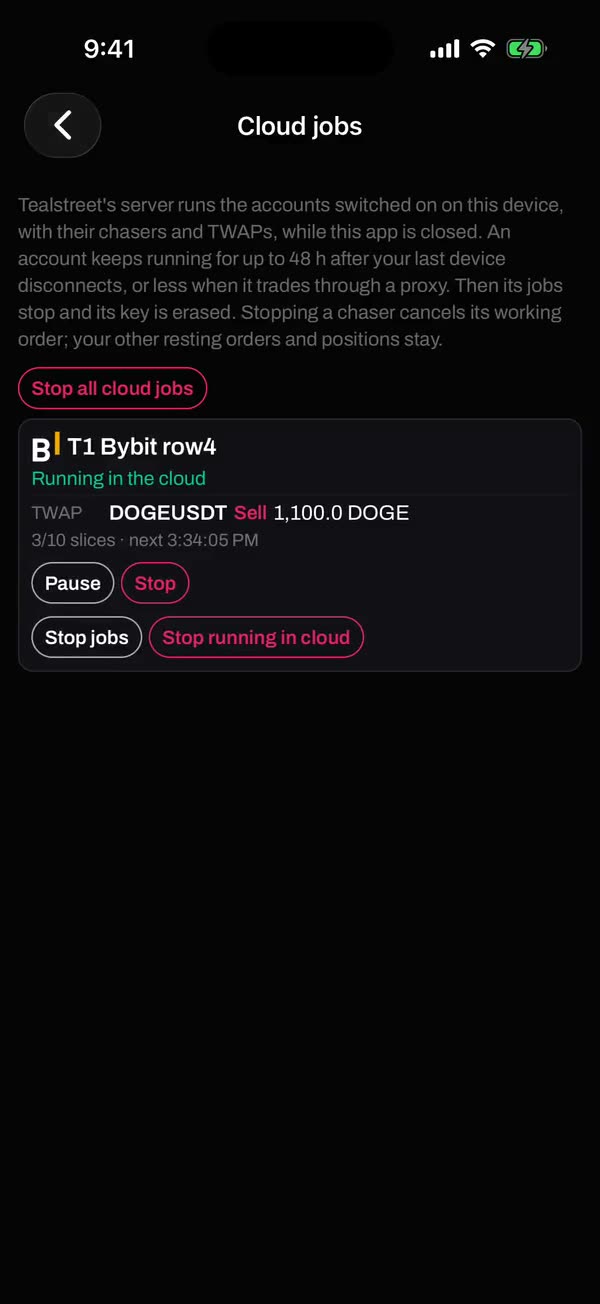
On mobile your exchange accounts run on Tealstreet's servers (DELEGATED mode). So your chasers and TWAPs keep working after you close the app. In the app's own words:
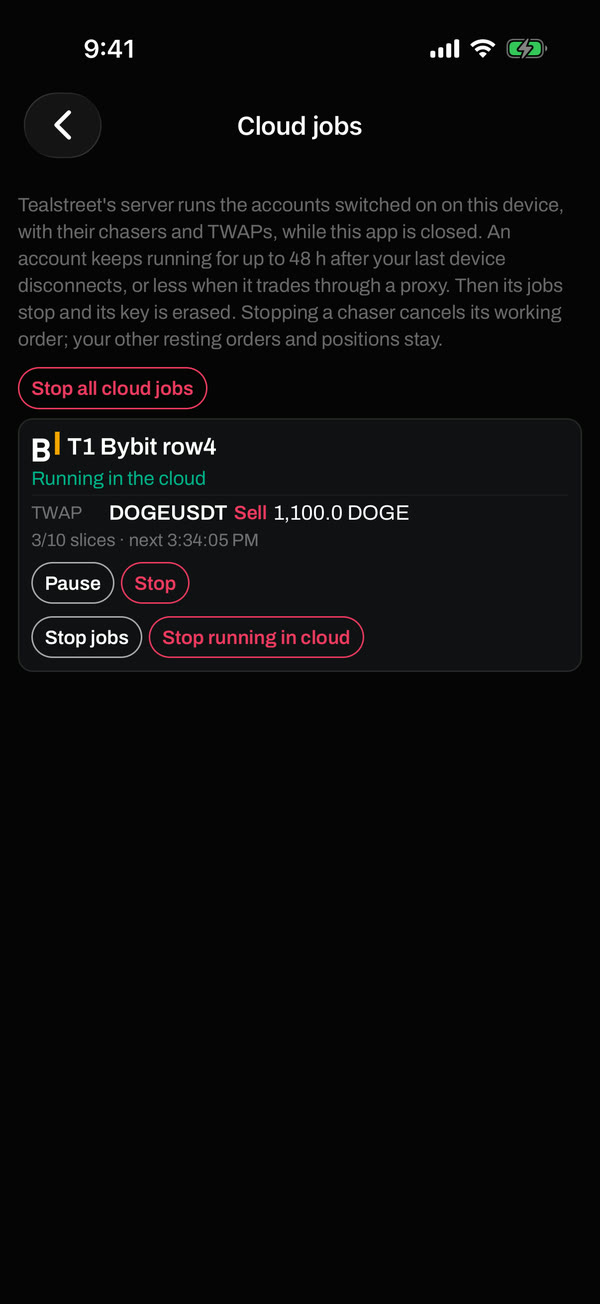
Tealstreet's server runs the accounts switched on on this device, with their chasers and TWAPs, while this app is closed. An account keeps running for up to 48 h after your last device disconnects, or less when it trades through a proxy. Then its jobs stop and its key is erased. Stopping a chaser cancels its working order; your other resting orders and positions stay.
Start a TWAP and watch it
 1
Close with a TWAP
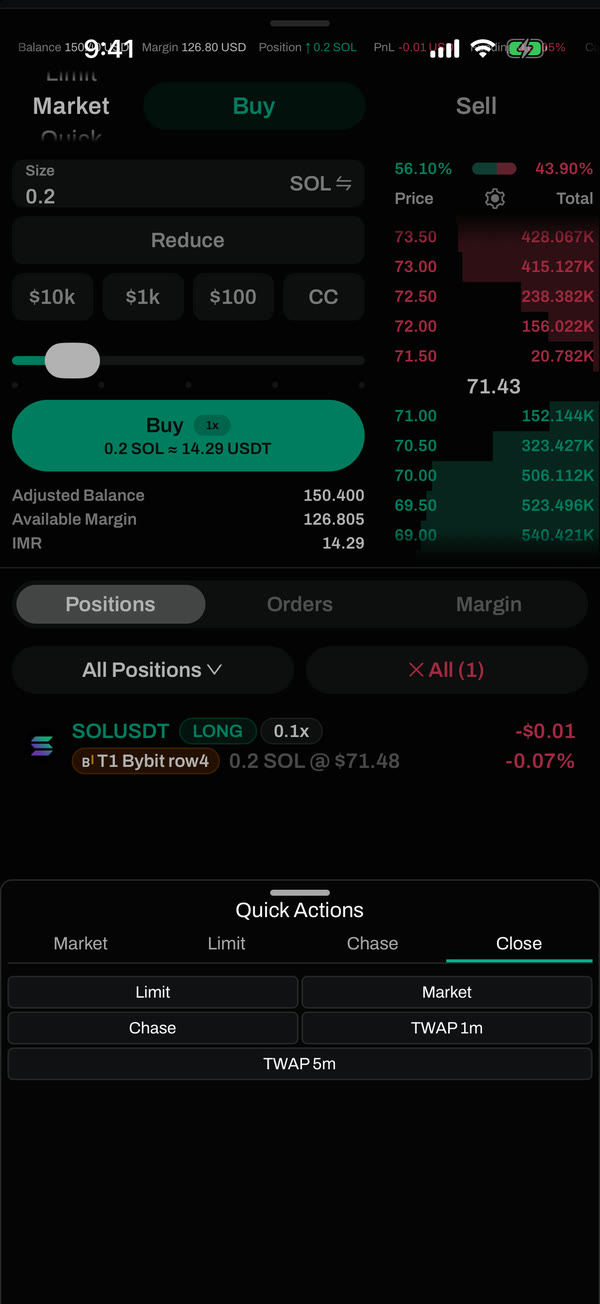
Swipe a position left, tap Actions, open the Close tab, and choose TWAP 1m (1) or TWAP 5m (2). The close is split into 10 slices, and each slice must be above the exchange's minimum order, so a very small position can't be closed by TWAP.
 2
See it on Cloud jobs
Side panel → Cloud jobs shows the job and its progress (1). Pause and Stop (2) control it. It keeps running on Tealstreet's servers after you close the app.
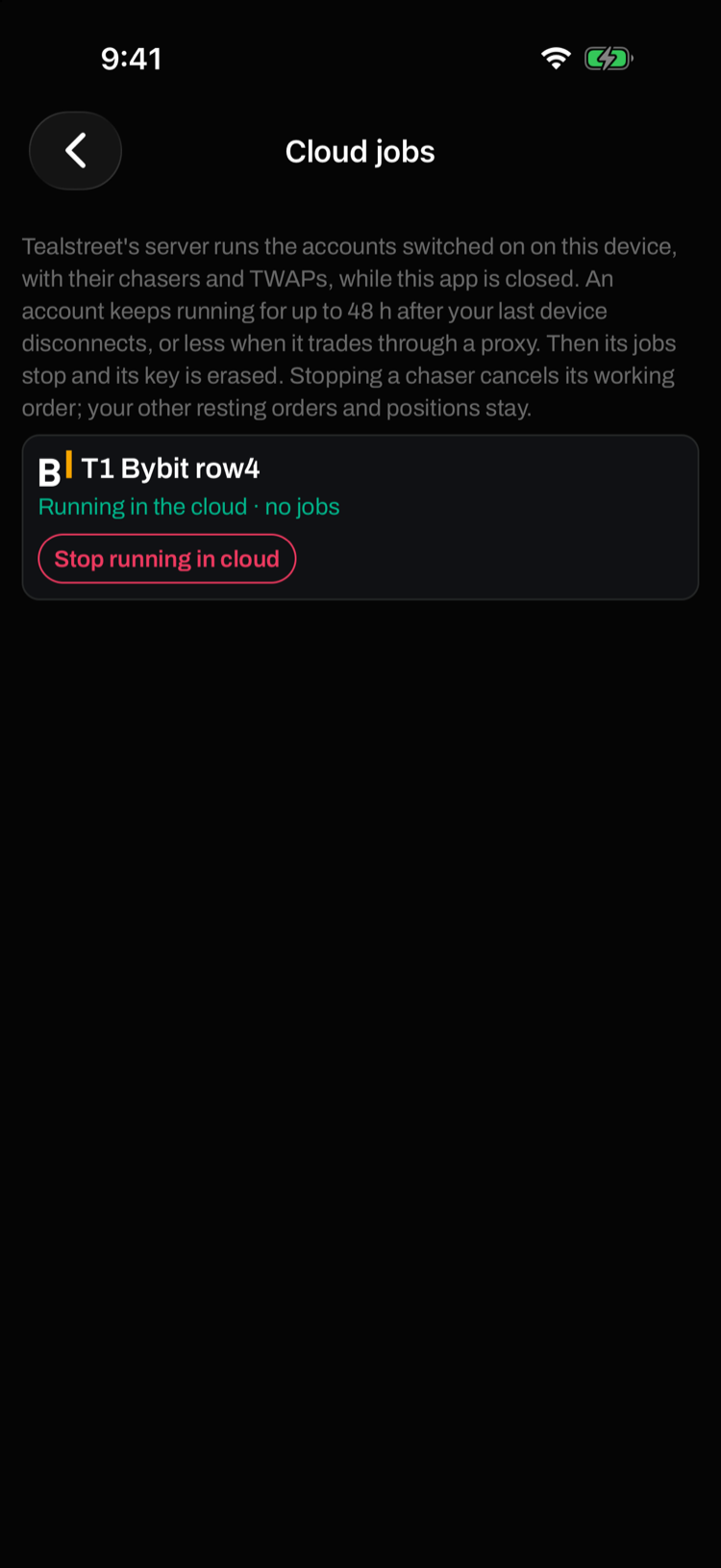
The Cloud jobs screen lists each account and its running jobs:
- A TWAP can be paused (Pause / Resume) or stopped (Stop). A chaser can only be stopped.
- Stop jobs on an account stops that account's jobs.
- Stop running in cloud ends the account's cloud session from this device.
- Stop all cloud jobs appears when at least one account has jobs running.
Stop running in cloud only affects this device. If another of your devices is connected to it, the server keeps it running for that device. Resting orders and open positions stay on the exchange either way.
Settings
| Group | Sections |
|---|---|
| Accounts | Accounts: API keys, connected exchanges and Cloud sync. Exchange: per-exchange overrides. |
| Trading | General: trading defaults. Place Order: order form layout. Chart: chart engine, candles and indicators. News Trading: feeds, filters and quick orders. Notifications: push notifications to this phone. |
| App | Mobile: density, haptics and this device. Performance: render rate and battery. Languages: interface language. |
| Advanced | Developer: diagnostics and debug tooling. |
The General section holds your trading defaults.