Getting Started
This page takes you from "I'd like the app" to signed in. When you're done, continue with Connecting your exchange accounts.
Tealstreet mobile is in early access. To get an invite, ask in our Discord or email [email protected].
1. Install the app
iPhone and iPad (TestFlight)
iOS invites come in two emails from Apple, and you need both:
- An App Store Connect invitation. Accept it first. It adds you to Tealstreet's testing team. Apple drops an unaccepted invitation after about three days, so don't leave it in your inbox. If it expires, ask us for a new one.
- A TestFlight invitation, which arrives after you accept the first one.
Then:
- Install TestFlight from the App Store.
- Open the TestFlight invitation email on your iPhone and tap the link. Or open TestFlight and redeem the code from the email.
- Tap Install next to Tealstreet.
TestFlight installs new builds as they come out. Keep automatic updates on in TestFlight, or open TestFlight now and then to update.
Apple's invitation emails often end up in spam or promotions. Search your inbox for "TestFlight" and "App Store Connect".
Android (Firebase App Distribution)
Android builds come through Firebase App Distribution, not the Play Store:
- Open the invitation email from Firebase App Distribution on your Android phone and accept it.
- Follow the email's link to install Firebase App Tester. App Tester isn't in the Play Store, so Android asks you to allow installs from this source. Allow it for the browser or app you're installing from.
- Open App Tester, find Tealstreet, and tap Download, then install it.
App Tester tells you when a new build is available. Each Firebase build expires about 150 days after release, so install the newer build when App Tester offers one.
2. Sign in
The app opens on the Trade tab even before you sign in, with live public market data. Your accounts, balances and orders need a Tealstreet account, which you create or sign in to from the app.
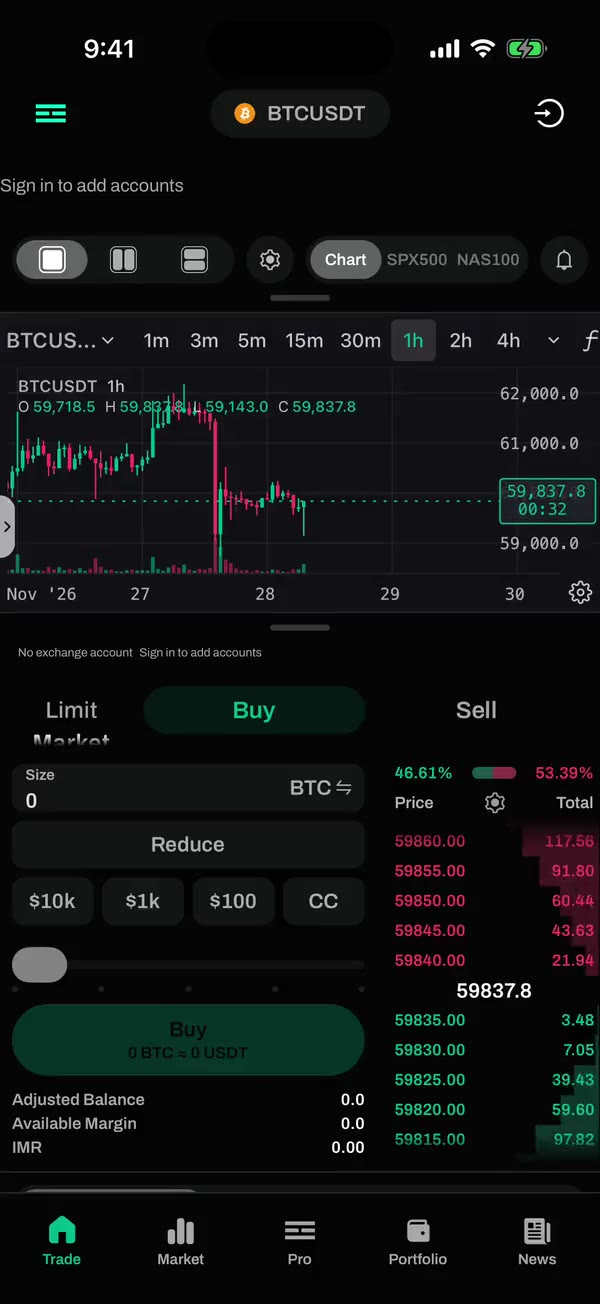 1
Tap the sign-in icon
It's the arrow-into-a-box icon at the top-right of the screen.
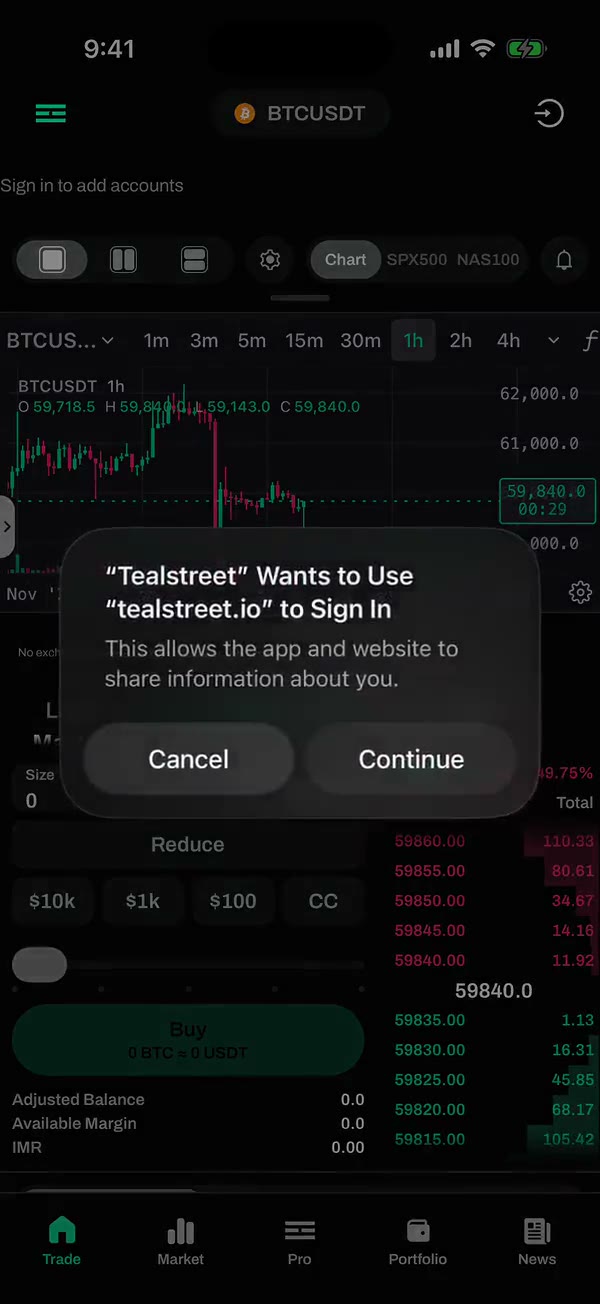 2
Let the app open the sign-in page
Your phone asks whether Tealstreet may use tealstreet.io to sign in. Tap Continue (1).
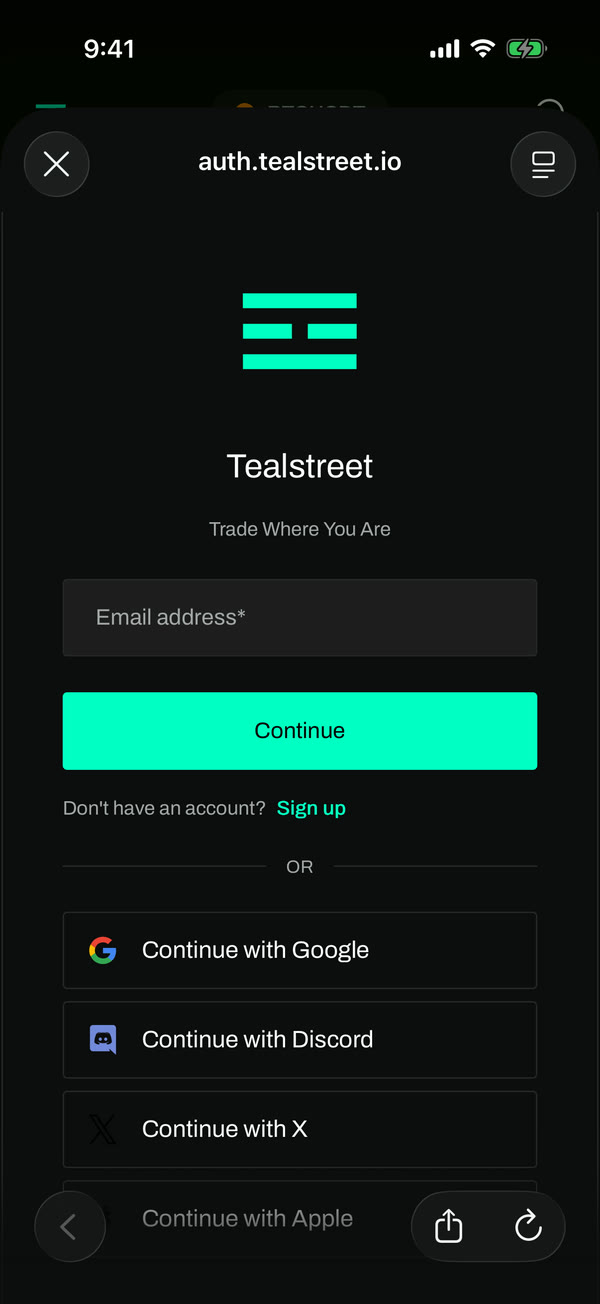 3
Sign in or sign up
Sign in with your email (1), or tap Sign up (2) to create your account right here. Google, Discord, X and Apple work too (3).
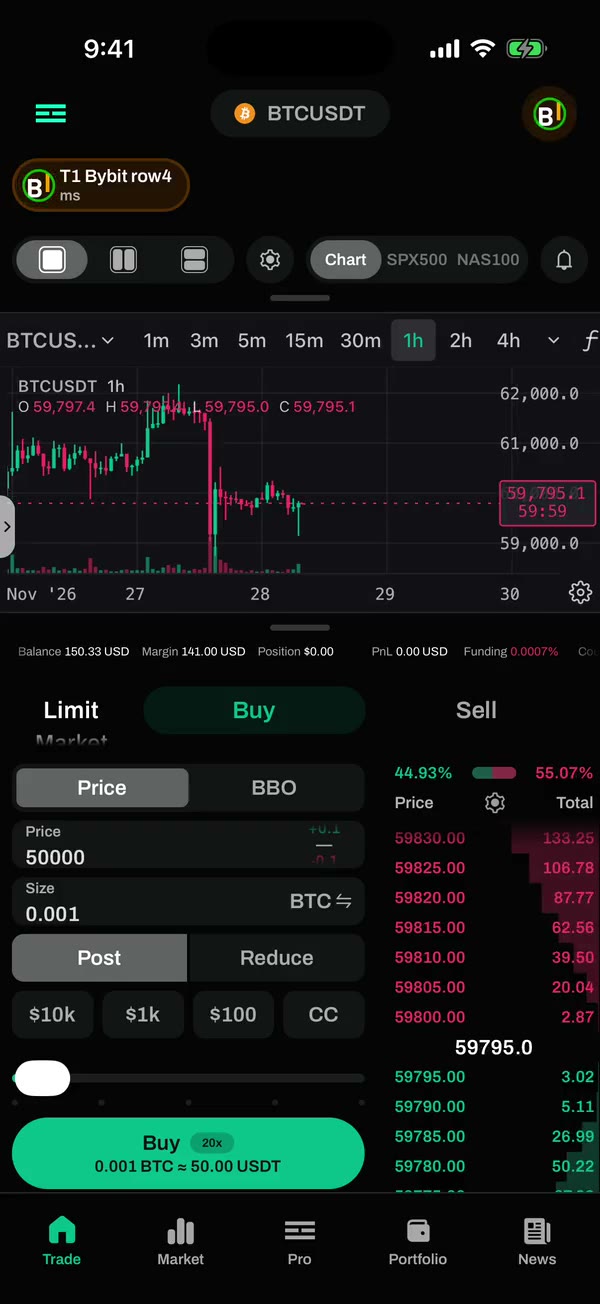 4
You're in
The sign-in page closes and you're back in the app. Once you've connected an exchange account, it shows in the account bar (1). Until then the Trade screen shows No exchange account with an Add an API key button.
Signing out, and signing back in
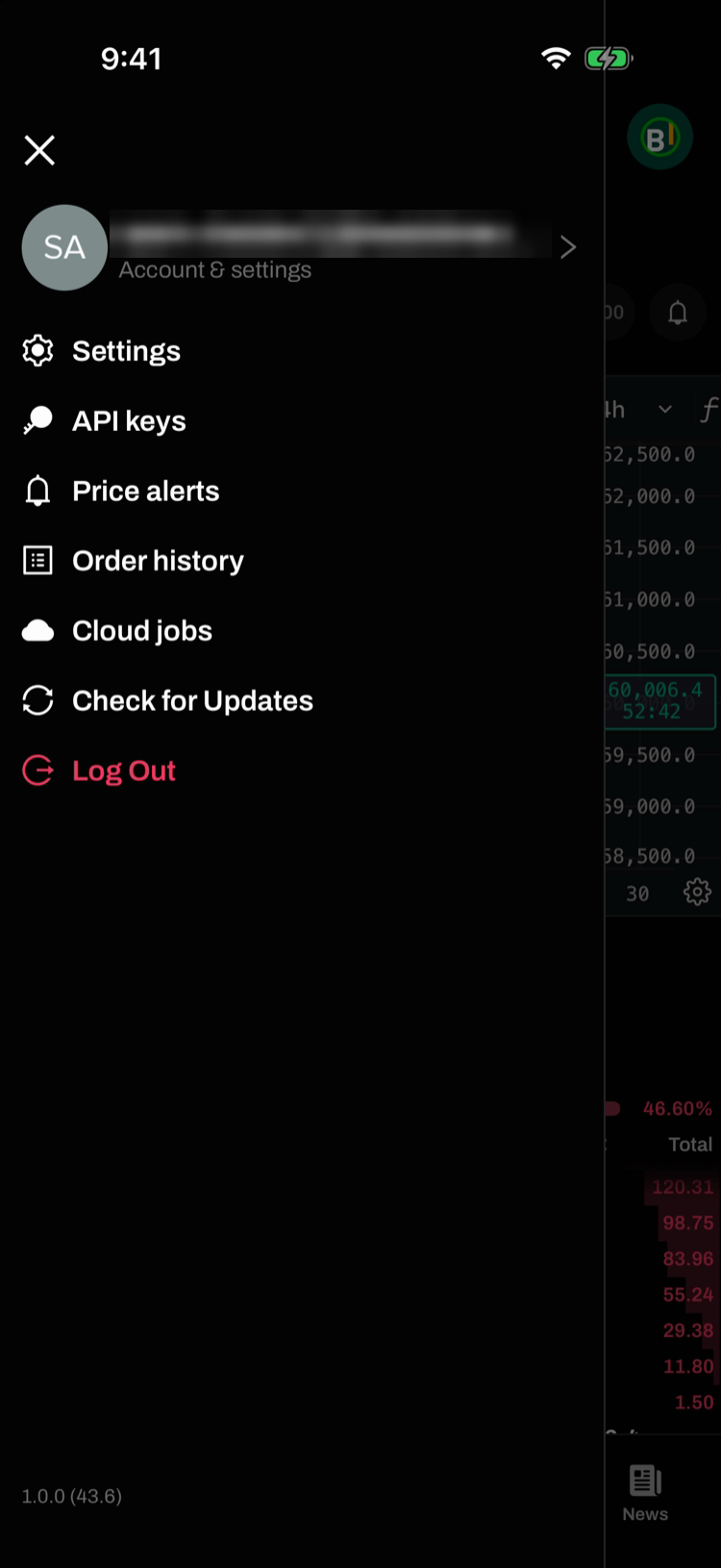
- Sign out: tap the Tealstreet logo at the top-left to open the side panel, then tap Log Out (the red item at the bottom). The app restarts, signed out.
- Sign back in: tap the sign-in icon at the top-right again.
If the app ever says "Your session has expired. Please log out and log in again.", tap Log Out, wait for the app to restart, then tap the top-right sign-in icon.
3. App updates
There are two kinds of update:
- New builds (a new TestFlight or Firebase build). Install these through TestFlight or App Tester as above.
- In-app updates. Most fixes are delivered straight to the app, without a new build.
The app checks for in-app updates when you open it and when you come back to it (at most every 15 minutes). A check only looks: nothing is downloaded until you choose to. When an update is available, the app shows a full-screen Update available message:
- Update now downloads the update and restarts Tealstreet straight away.
- Later · 3 remaining postpones it, before anything is downloaded. The app asks again when you come back after four hours. You can postpone the same update three times. After that it's required the next time you open the app.
You can also check yourself at any time with Check for Updates in the side panel.
When an update loads on the next open
Sometimes Update now can't finish in one go. If the download is slow, the app lets you carry on rather than keeping you waiting. If the download completes without the restart, you'll see "The update is downloaded. Restart now, or it will apply the next time you reopen Tealstreet." Choose Restart now, or Continue to app and keep trading.
A downloaded update loads the next time the app starts fresh: fully close Tealstreet (swipe it away in the app switcher) and open it again. Switching to another app and back isn't enough.
So if we tell you a fix is out and you don't see it, tap Check for Updates in the side panel and choose Update now. If you've already downloaded it, fully close and reopen the app.