Cross Trades
The Cross Trades module allows you to copy trades onto alternate API keys. This is useful for those who want to trade on multiple exchanges or accounts at once.
It can be used to copy trades from one account to another, or to copy trades from one exchange to another. It even supports a form of basket trading where you can go long on one ticker and short on another, or vice versa.
Accessing the Cross Trades module
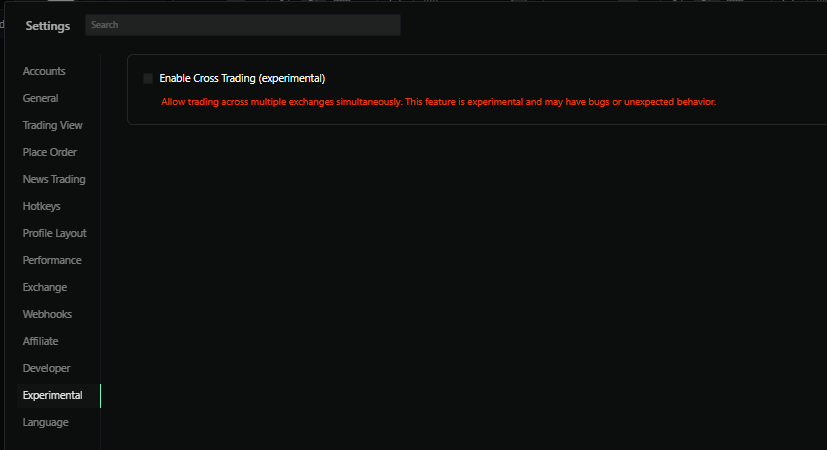
You can enable cross-trades from the experimental settings tab in the settings menu.
Activating & Setting up the Cross-Trades module
In the top right of your terminal when logged in you can access the module selector option and can select the Cross Trades module.
This will place the module on your layout and you can proceed to set it up and use it.
-
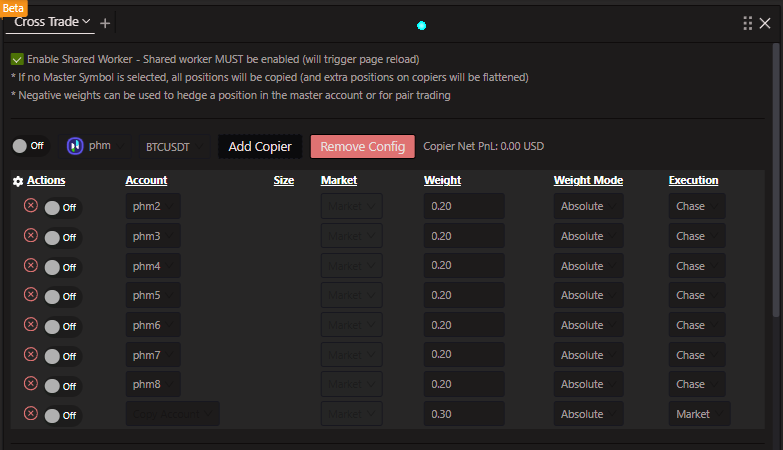
In the top left of the module choose the account you wish to make as a master. You need to be logged in and have the account linked in order to use this option. * Make sure to toggle the On switch so that the module will be fully enabled.
-
After you have enabled a master account you can then click the button to add Copier's. * In these copier accounts you can select the account(s) you wish to copy trades to.
The cross-trade engine runs in one browser tab at a time per device — coordinated via a localStorage leader lock with a 1.5s heartbeat. Open multiple Tealstreet tabs and only the leader places orders; close the leader and another tab takes over within a few seconds. No "Shared Worker" toggle is required anymore.
Configuring Copier Accounts
Some of the settings you can adjust are the Weight, Weight Mode & the Execution type.

-
Weight: This is the amount of the trade that will be copied to the copier account. For example, if you set the weight to 0.5, then half of the trade will be copied to the copier account. * Note: Value's can also be set to negative. So if you long 1 BTC on the master account, and the copier is set to -0.5 then it will short 0.5 BTC on the copier account.
-
Weight Mode: This is the mode in which the weight will be applied. You can choose between 'Absolute' and 'Balance'.
- Absolute: The weight will be applied as a fixed amount.
- Balance: The weight will be applied as a percentage of the trade size.
-
Execution Type: This is the type of execution that will be used for the copied trades. You can choose between 'Market', 'Limit Slippage', and 'Chase'.
- Market: The copied trades will be executed immediately at the market price.
- Limit Slippage: The copied trades will be executed at a limit price with a slippage tolerance.
- Chase: The copied trades will be executed at limit and will attempt to chase price as it moves. This is useful for fast moving markets where you want to ensure that the trade is executed but not at the expense of a market order.
Advanced Features
Master Symbol Selection
- Master Symbol: You can optionally specify a specific symbol to copy from the master account. If no master symbol is selected, all positions will be copied (and extra positions on copiers will be flattened).
- Symbol Mapping: The module automatically maps symbols between exchanges, but you can also manually specify different symbols for the copier accounts.
Position Management
- Effective Size Display: The module shows the effective size of positions and the approximate weight multiplier (e.g., "≈ 1.5x") to help you understand the current position sizing.
- Net PnL Tracking: Each configuration displays the net PnL across all copier accounts for easy monitoring.
- Active Chasers: For accounts with chaser orders enabled, you can see active chaser orders directly in the copier configuration.
Multiple Configurations
- You can create multiple cross-trade configurations, each with different master accounts and symbols.
- The system prevents conflicts between configurations (e.g., the same account being used as a copier in multiple configs with the same symbol).
- Each configuration can be enabled/disabled independently.
Validation and Error Handling
The module includes comprehensive validation to prevent configuration errors:
- Master Account Validation: Ensures the master account is active and properly connected.
- Symbol Conflict Detection: Prevents duplicate symbol mappings within the same configuration.
- Account Conflict Prevention: Ensures the same account isn't used as a copier in conflicting configurations.
- Real-time Error Display: Shows validation errors immediately as you configure the module.
Hedge Trading Support
- Negative Weights: Use negative weights to create hedge positions or pair trading strategies.
- Position Hedging: Automatically detects when copier positions are hedged against master positions.
- Cross-Exchange Hedging: Hedge positions across different exchanges with different symbols.
Best Practices
- Start Small: Begin with small weights and test your configuration before scaling up.
- Monitor Closely: Keep an eye on the effective size display and net PnL to ensure positions are being copied correctly.
- Use Specific Symbols: When possible, specify master symbols to avoid copying unwanted positions.
- Check Exchange Support: Ensure your chosen exchanges support the execution types you want to use.
- Test Configuration: Always test your configuration with small amounts before using it for significant trading.
Run the engine in the CLI instead of a browser tab
Power users can run the cross-trade engine inside the Tealstreet CLI as a long-lived daemon instead of relying on a browser leader tab. Configs live at ~/.tealstreet/cross-trade.json and the CLI command surface is tealstreet cross-trade {list,add,enable,disable,remove,run,status}.
Quick start:
tealstreet cross-trade add --master my-master --copier my-copier --symbol BTCUSDT --mode Market --enabled
tealstreet cross-trade run     # foreground; Ctrl+C to stop
tealstreet cross-trade status  # from another shell
When both the web leader tab and the CLI daemon are active for the same configs, both engines will place orders. The web shows a yellow warning banner above the leader-status alert, and the CLI prints a throttled warning line — neither side auto-disables the other, so close one before running both.
Chase execution mode is web-only in CLI v1. Configs with Chase copiers are accepted by tealstreet cross-trade add but skipped at run time; use Market or LimitSlippage on the CLI.
Full CLI documentation at docs.tealstreet.io/cli/operations/cross-trade.
Troubleshooting
- Account Connectivity: Ensure all accounts are properly connected and active before setting up cross-trades.
- Symbol Availability: Verify that the symbols you want to trade are available on both master and copier exchanges.
- Execution Issues: If trades aren't executing, check the execution type settings and ensure the exchange supports your chosen method.
- "Cross Trade is running in another tab": Another browser tab on this device owns the leader lock. Close it (or its window) to take over here; takeover happens within a few seconds.
- "Cross Trade is ALSO running on the CLI": The local
tealstreet cross-trade rundaemon is up and this tab is the leader. Both will place orders — disable one.